← Back to Atlas Gym Manager USER GUIDE

Atlas Gym Manager user guide

A step-by-step guide to using Atlas Gym: from activating your licence to managing members, payments, the shop and your team.

8 chapters 29 steps Need help? WhatsApp us
▶VIDEO

Watch Atlas Gym Manager in action

A quick video tour before you start, then follow the steps below.

01Getting started

01

Activate the software

When you first launch the app, you get a 3-day free trial. To activate your licence, copy the device code and send it to us on WhatsApp: we’ll send back your serial number. Paste it in, then click the orange activation button. Your data stays on your computer, even after the licence expires.
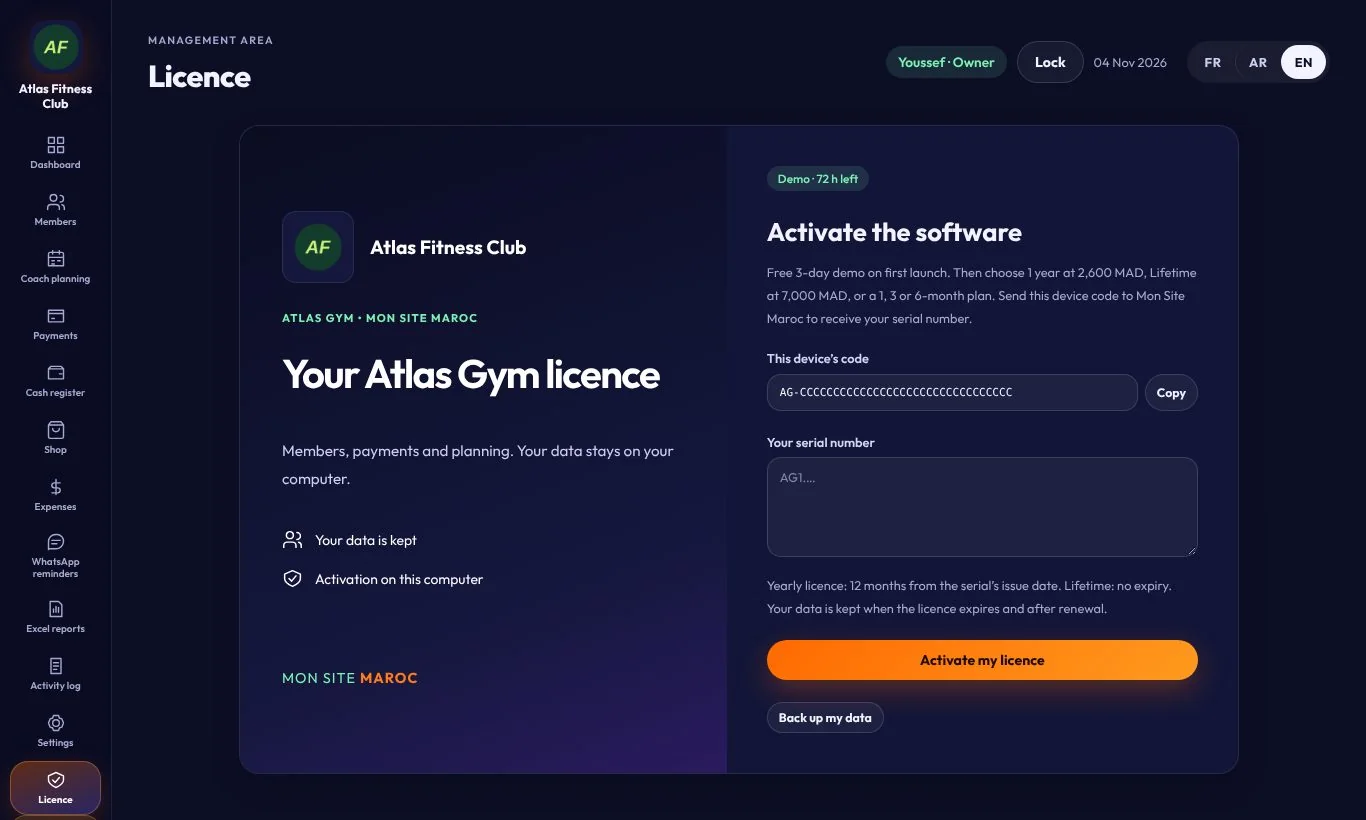
Activate the software
02

Log in

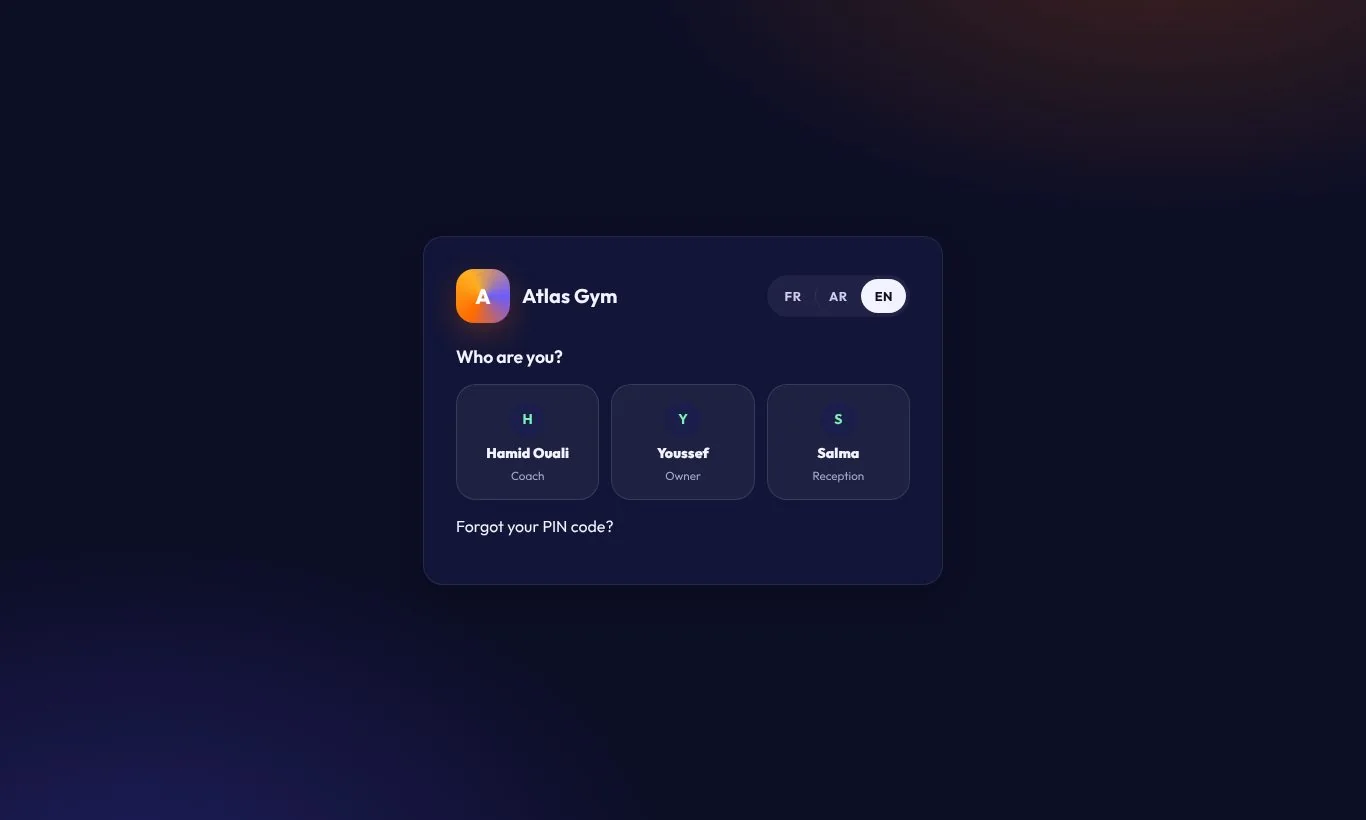
Pick your profile (owner, reception or coach), then enter your PIN code. Everyone has their own access, and the app records who did what.

Log in
03

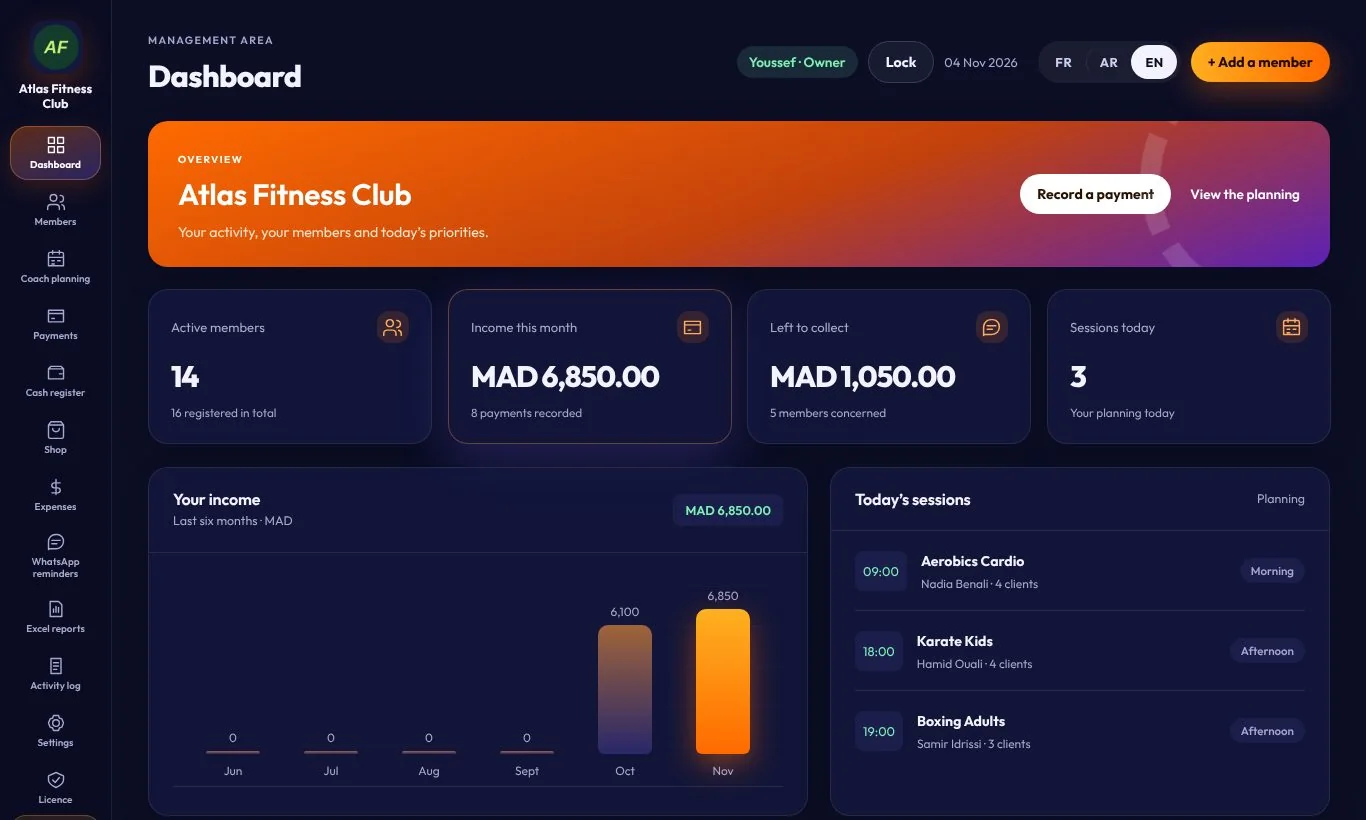
The dashboard

Right from the start: active members, this month’s revenue, amounts still to collect and today’s sessions. The chart shows your revenue for the last six months.

The dashboard

02Members

04

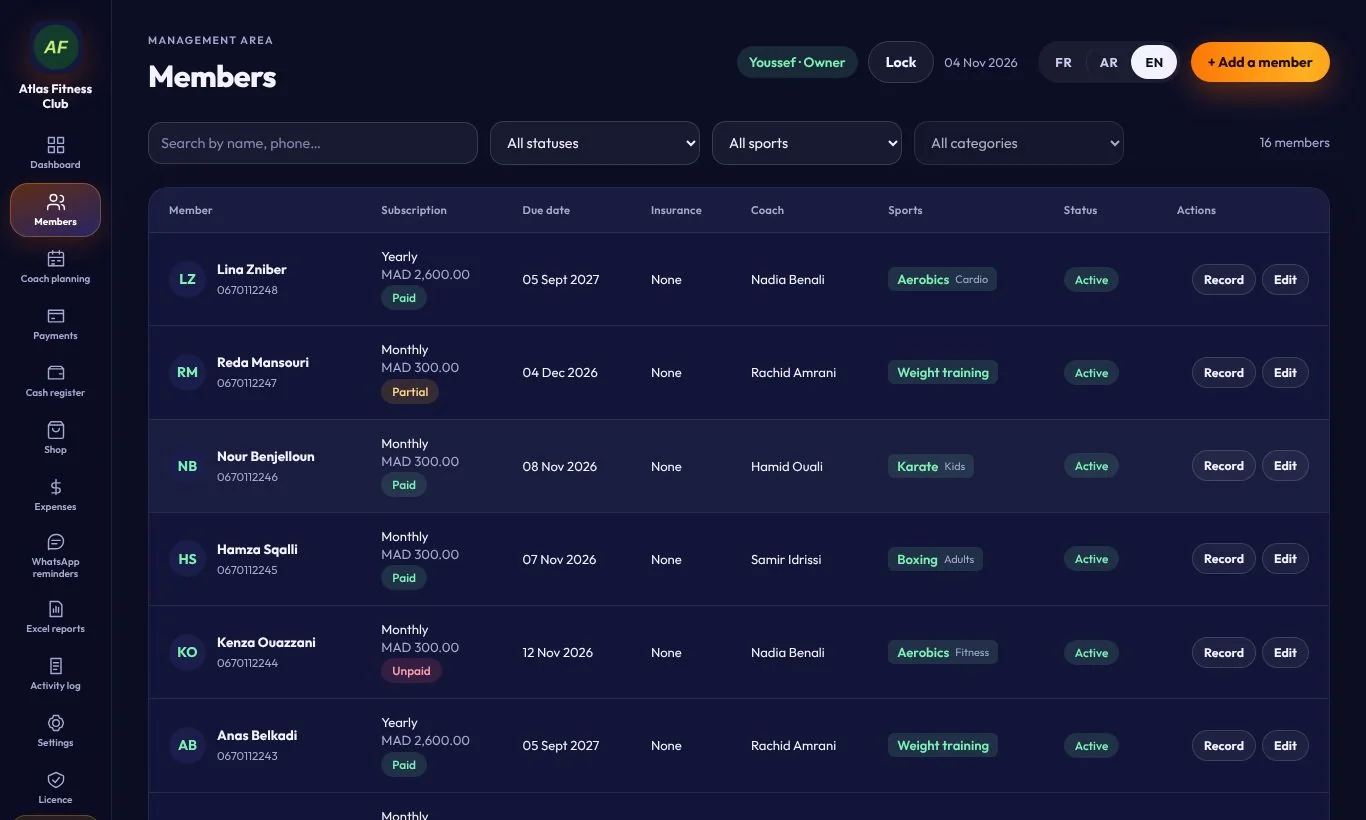
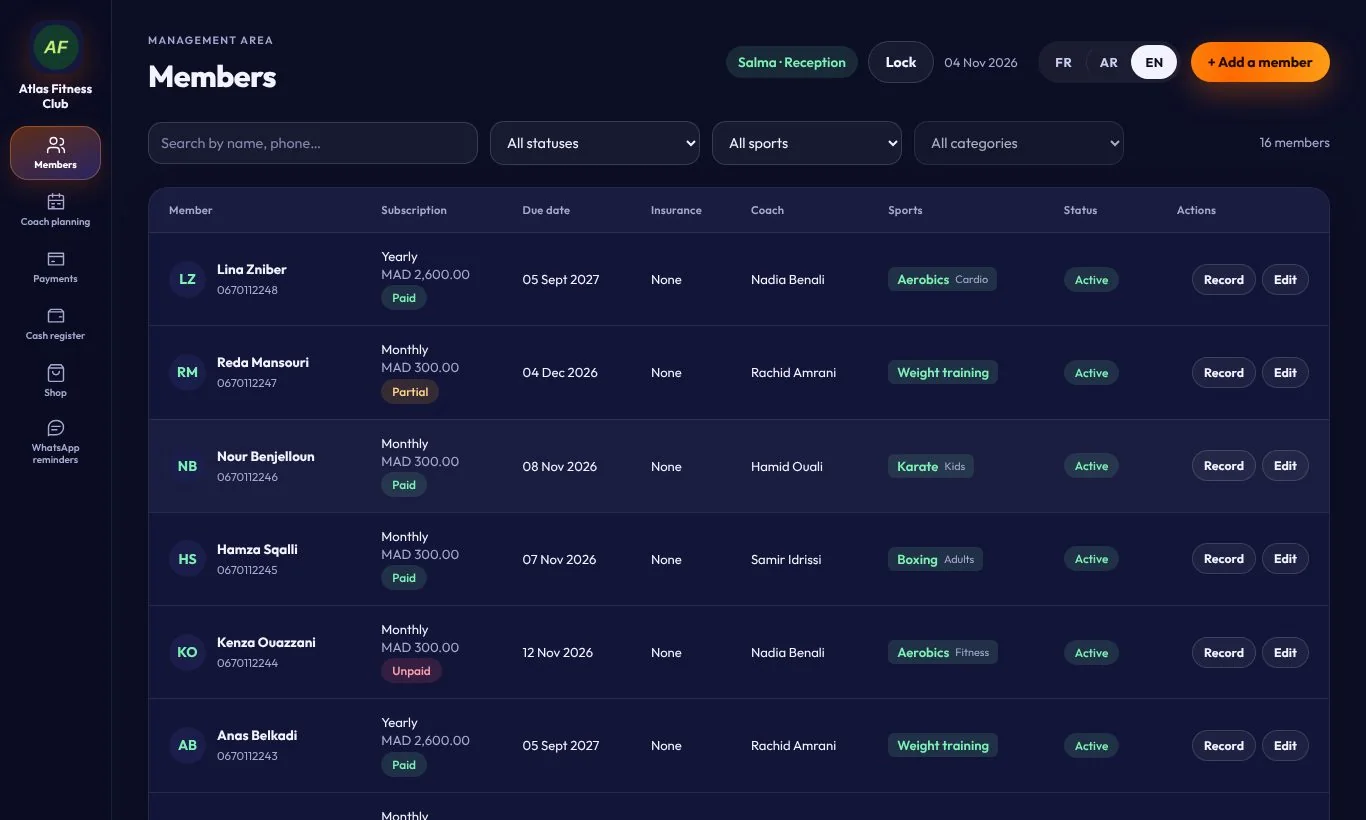
The member list

See all your members with their membership, end date, coach, sports and payment status (Paid, Partial, Unpaid). Filter by status, sport or category, or search by name or phone.

The member list
05

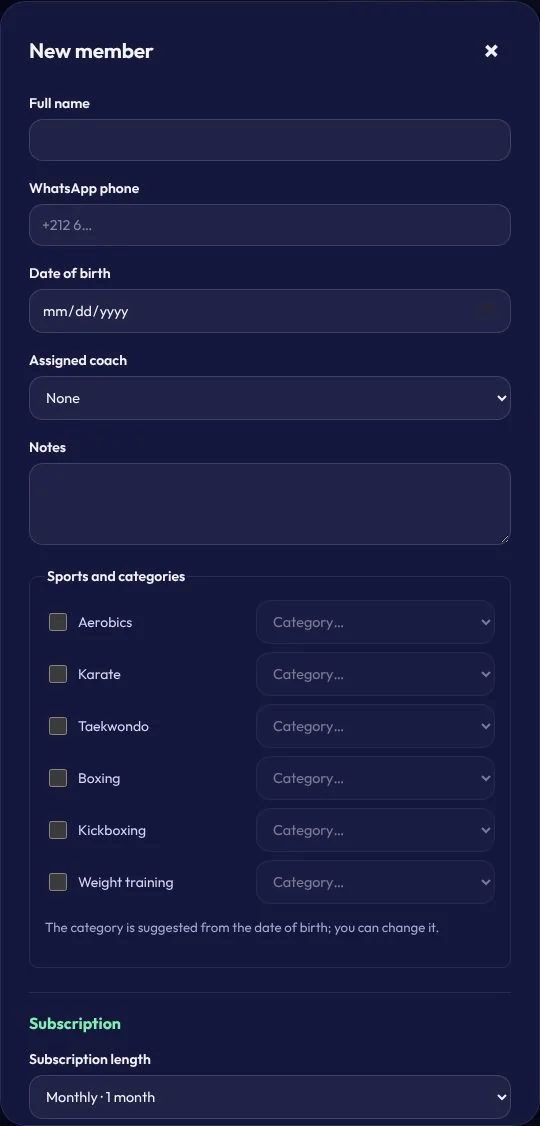
Add a member

Click “+ Add a member”, then enter the name, WhatsApp number, date of birth, coach and sports. The category is suggested automatically from the age, and you can change it. Then choose the membership length.

Add a member
06

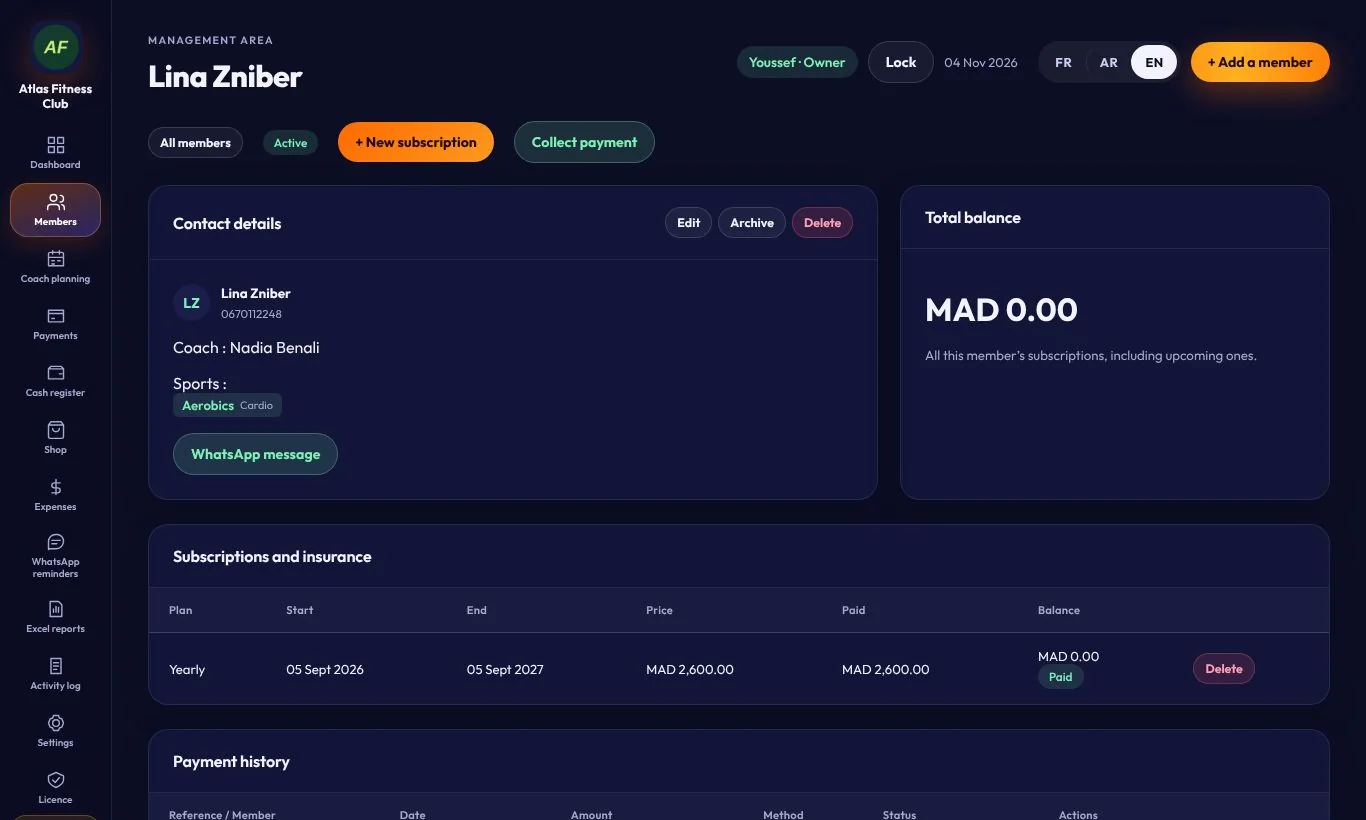
The member record

Click “Record” to see contact details, sports, memberships, payment history and the remaining balance. From there: new subscription, payment or WhatsApp message in one click.

The member record
07

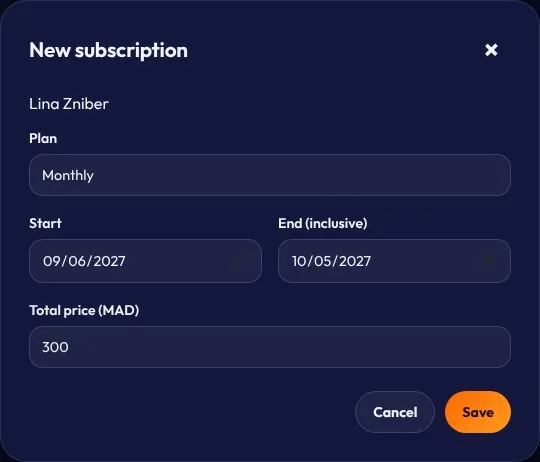
New subscription

From the member record, click “+ New subscription”: choose the plan, the start and end dates and the total price. The member stays active until the end date.

New subscription

03Payments

08

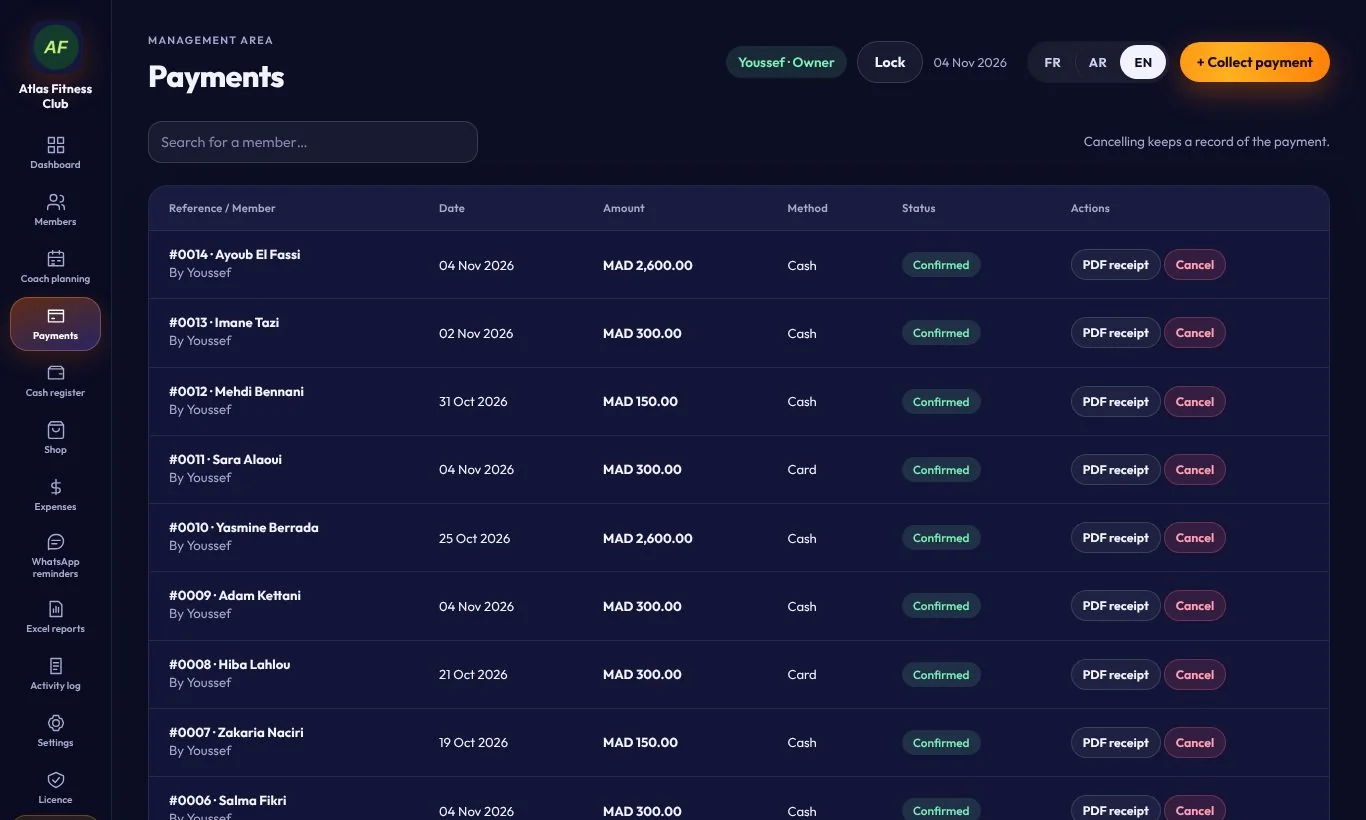
Payment history

Every payment with its number, date, amount, method (cash, card, transfer) and the user who recorded it. A cancelled payment stays visible in the history.

Payment history
09

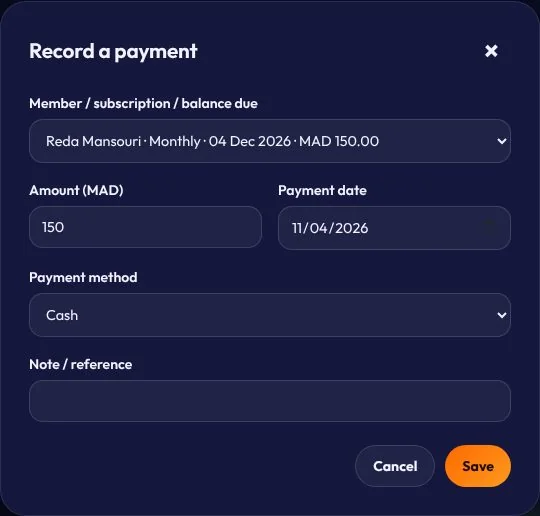
Record a payment

Click “Collect payment” and pick the member: the amount still due is shown. Enter the amount, date and payment method. Partial payments are accepted, and the balance is tracked automatically.

Record a payment
10

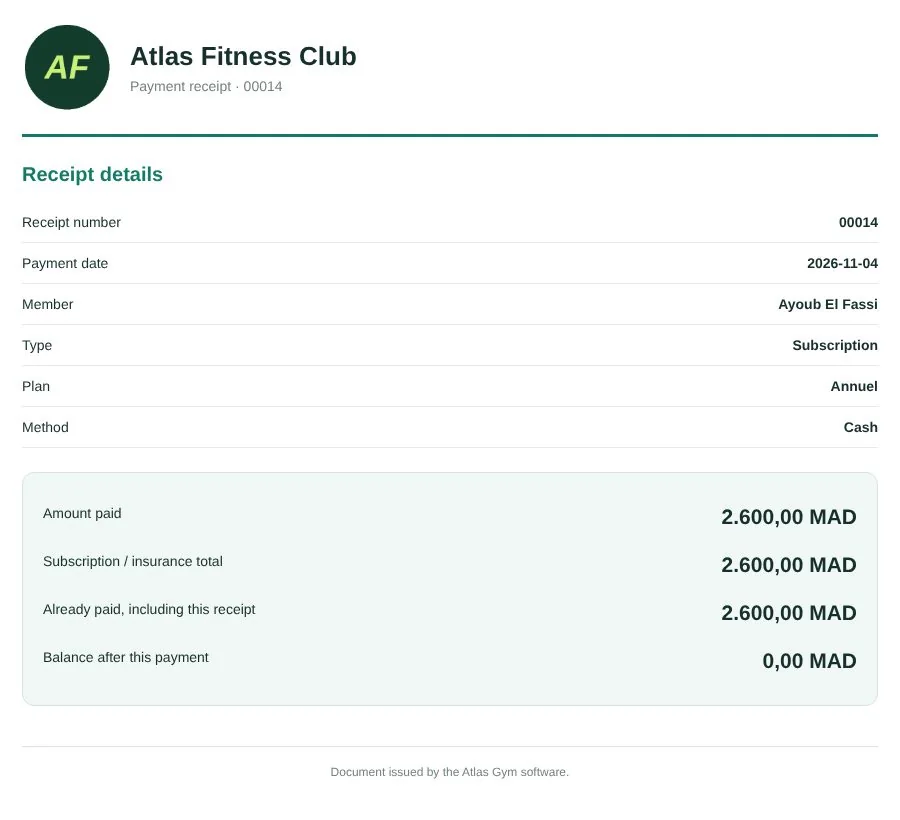
The PDF receipt

Every payment creates a receipt in your gym’s name: amount paid, membership total, already paid and remaining. Click “PDF receipt” to print it or send it to the member.

The PDF receipt

04Schedule

11

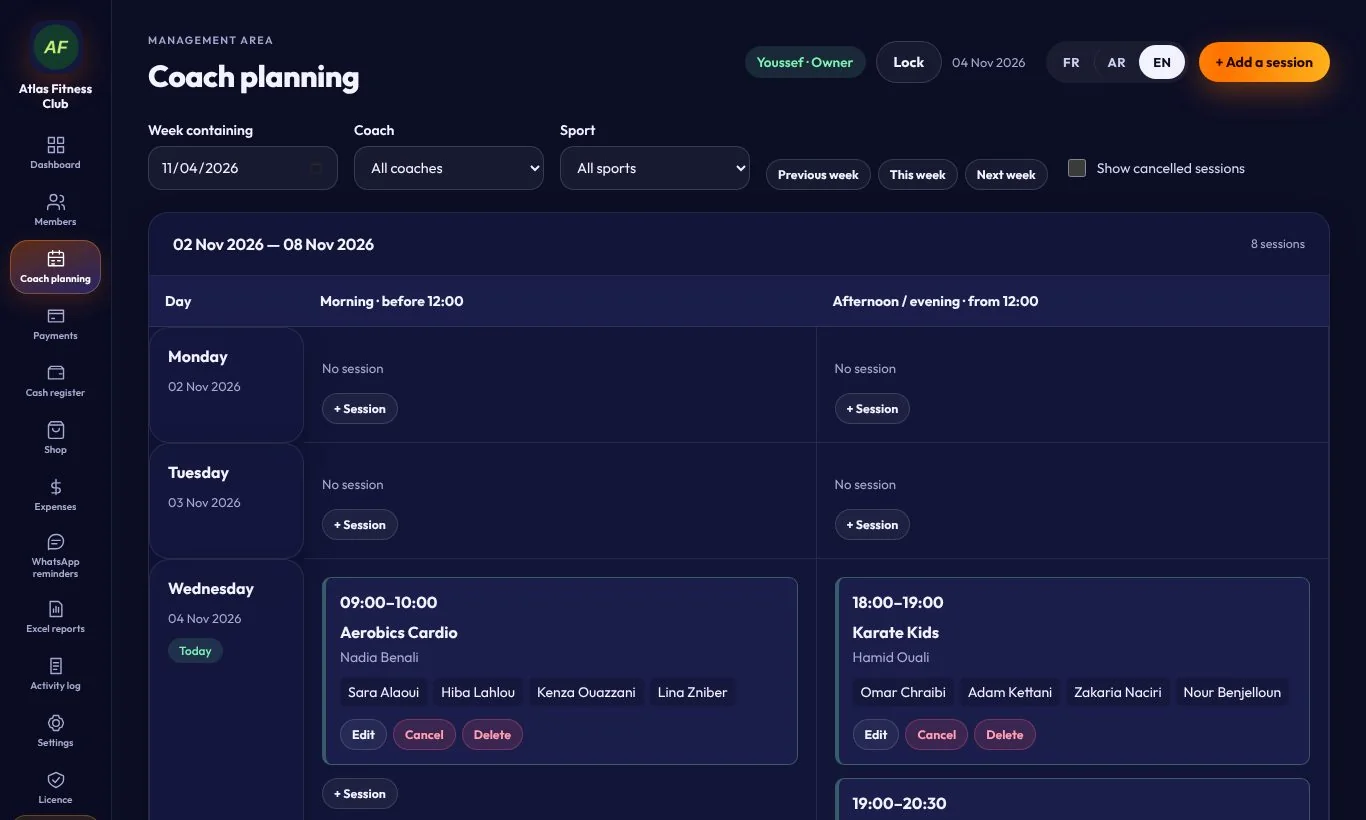
Coach planning

The week’s sessions, split between morning and afternoon, with the coach and enrolled members. Filter by coach or sport, and move from one week to the next.

Coach planning
12

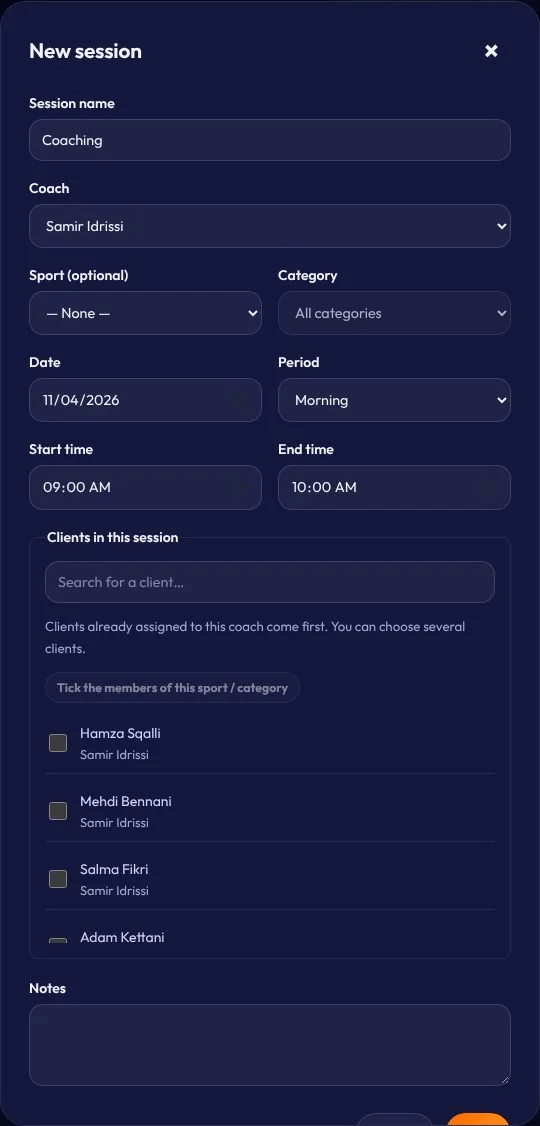
Add a session

Click “+ Add a session”: name, coach, sport and category, date and times, then tick the members. Members already assigned to that coach are listed first.

Add a session

05Cash register & shop

13

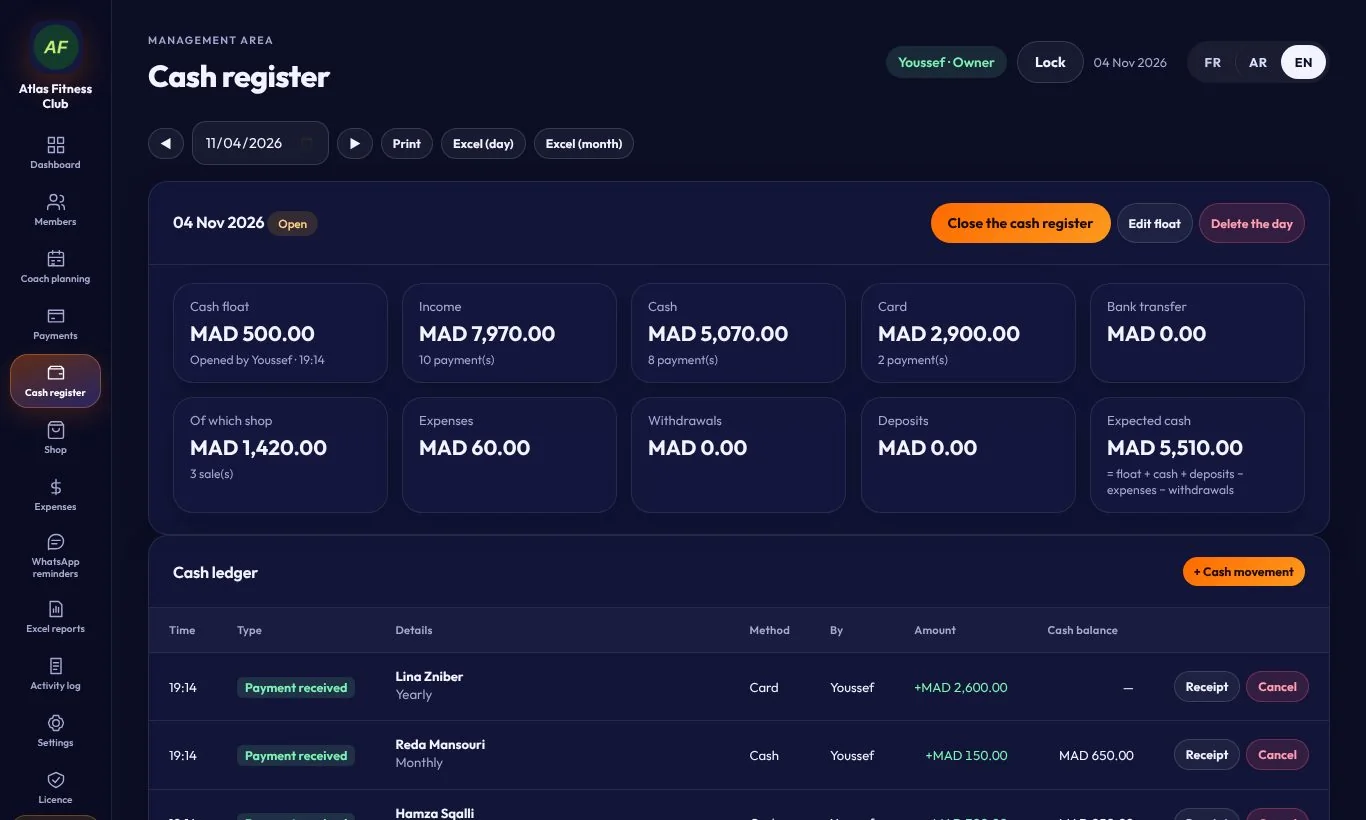
Today’s cash register

Open the cash register with a starting float, then follow the day’s takings by payment method, shop sales, expenses and expected cash. At the end of the day, close the register. Export to Excel by day or by month.

Today’s cash register
14

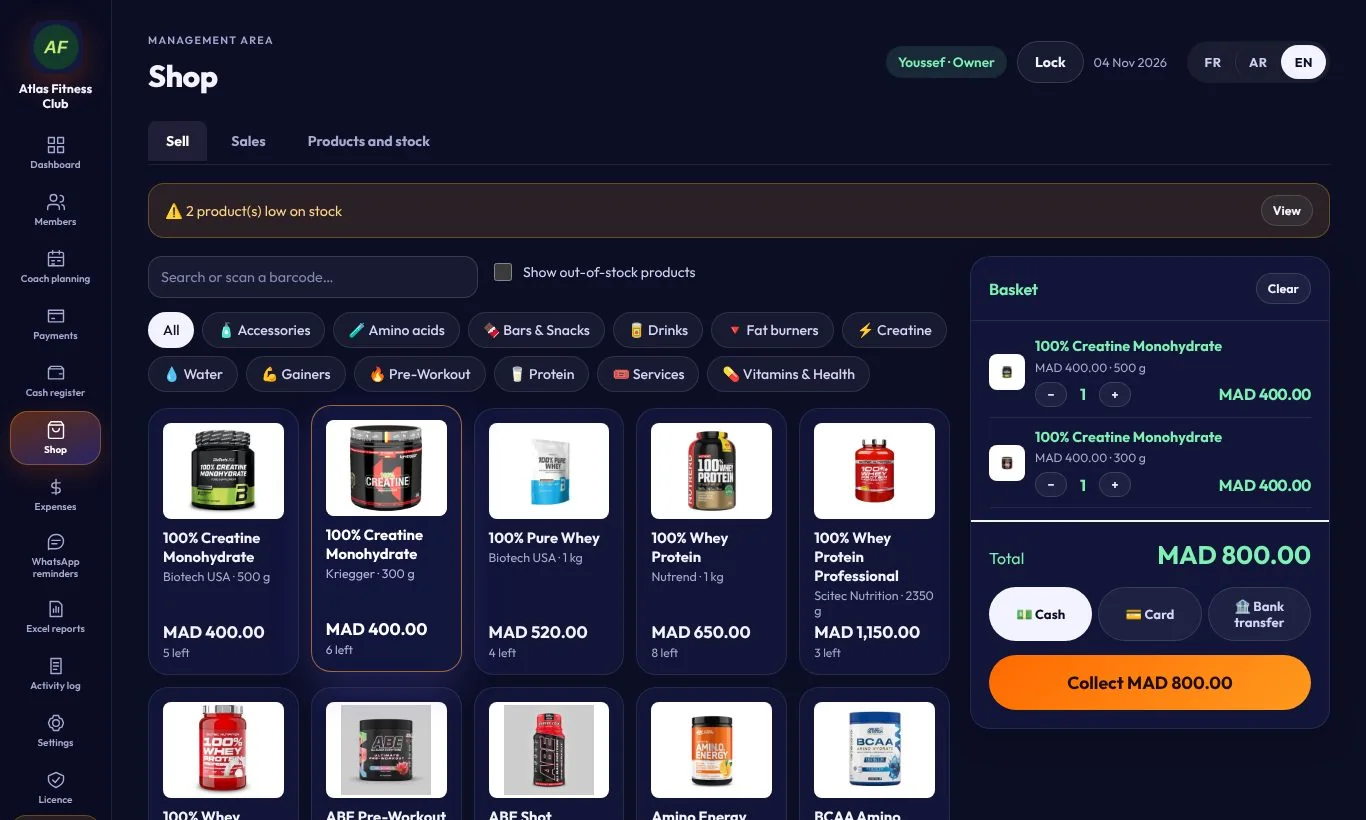
Sell in the shop

Tap a product to add it to the cart, or scan its barcode. Choose cash, card or transfer, then complete the sale. Stock updates automatically.

Sell in the shop
15

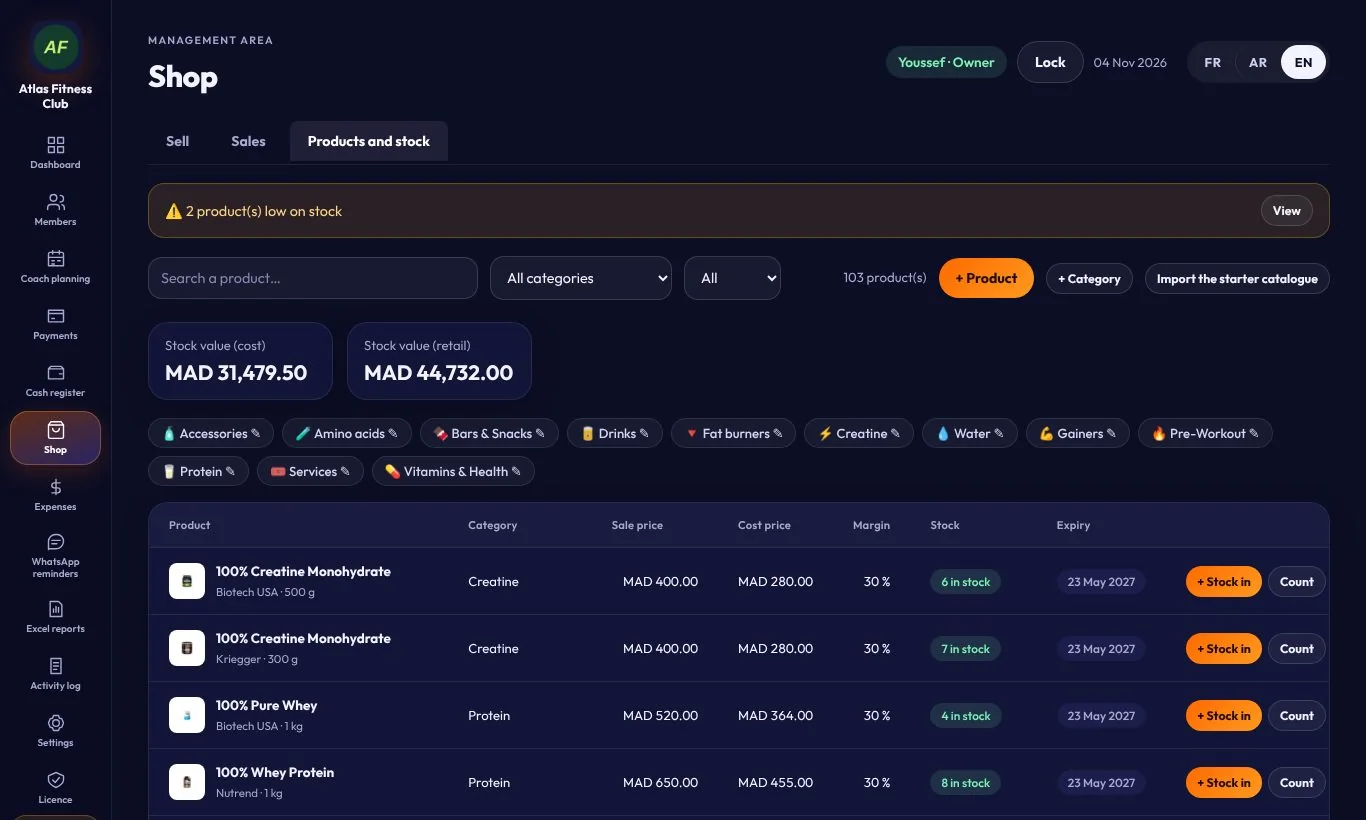
Products & stock

The “Products and stock” tab shows each product’s cost, sale price, margin, stock and expiry date, plus the total value of your stock. A banner warns you about low-stock products.

Products & stock
16

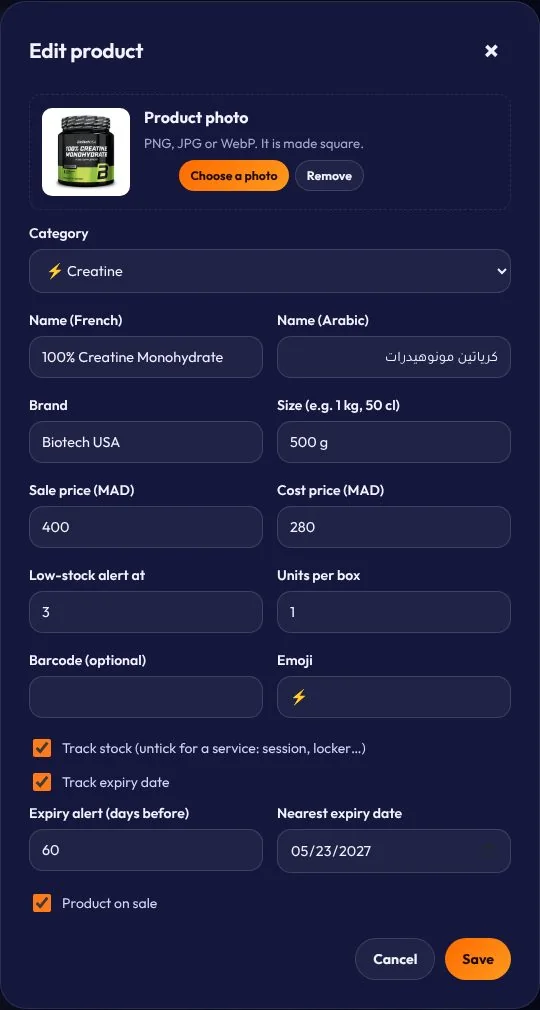
Product details

Add a photo, the category, the name in French and Arabic, the brand, cost and sale prices, the low-stock alert level and expiry tracking.

Product details
17

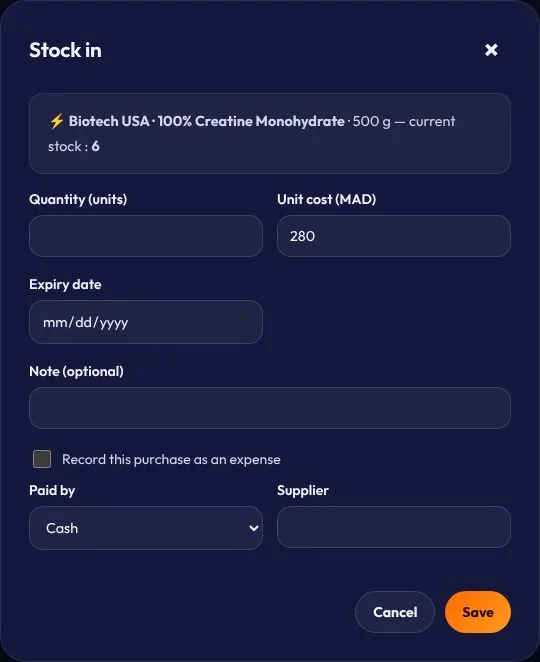
Stock in

For each delivery, click “+ Stock in”: quantity, unit cost and expiry date. Tick the option to record the purchase as an expense so it’s counted automatically.

Stock in

06Expenses & tracking

18

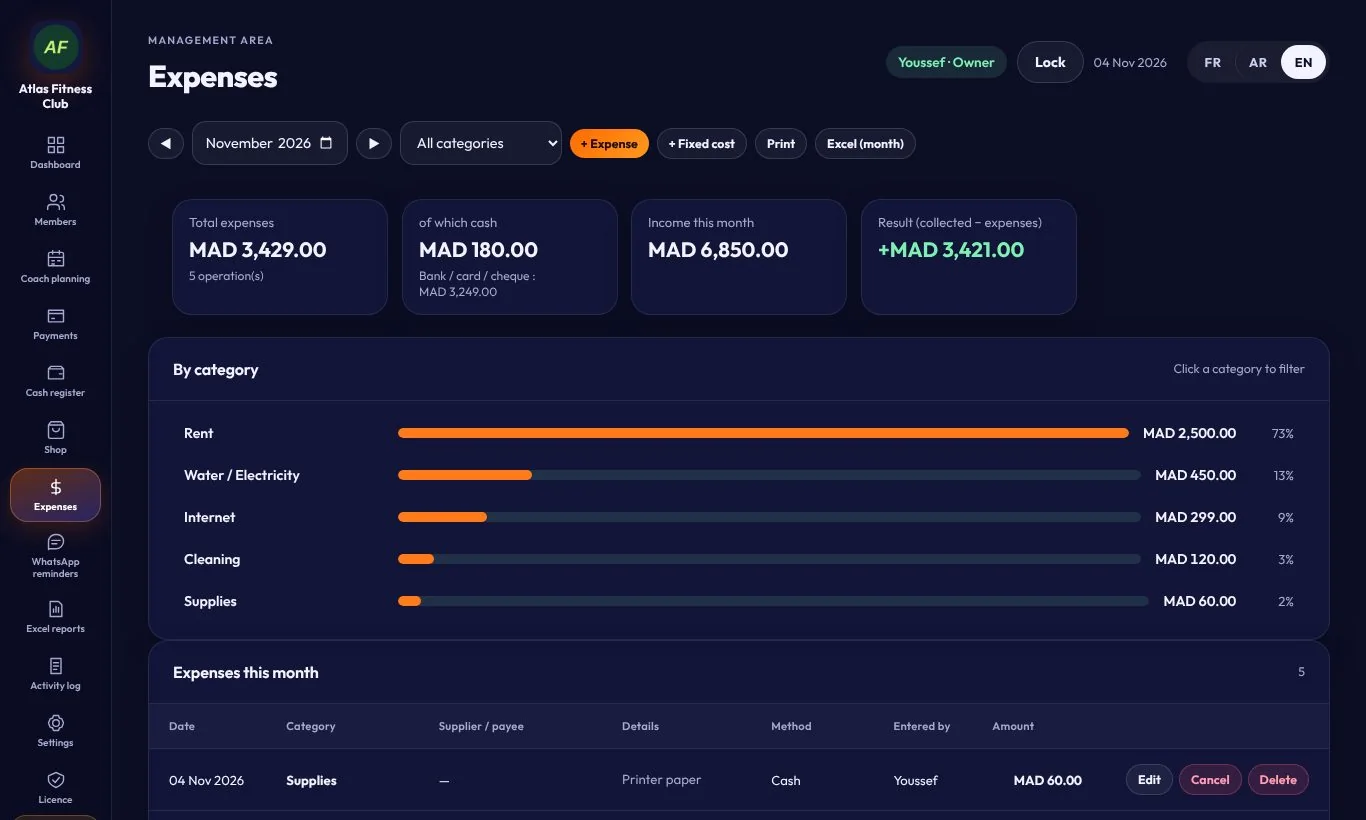
Expenses

Record rent, utilities, internet, cleaning and more. The app calculates the monthly total, the breakdown by category and your result (revenue minus expenses).

Expenses
19

WhatsApp reminders

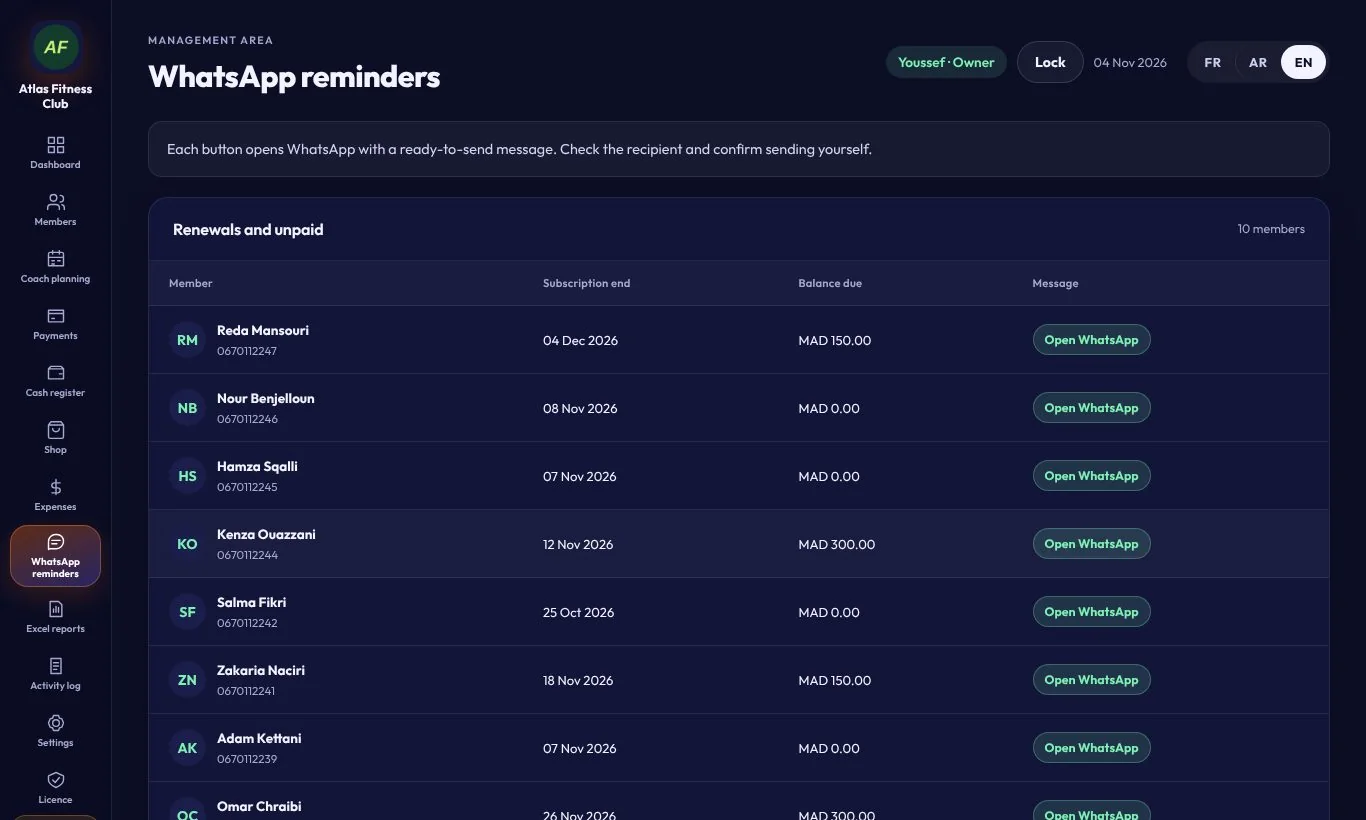
The list of memberships about to expire and unpaid balances. “Open WhatsApp” prepares the reminder message: just check it and send it.

WhatsApp reminders
20

Excel reports

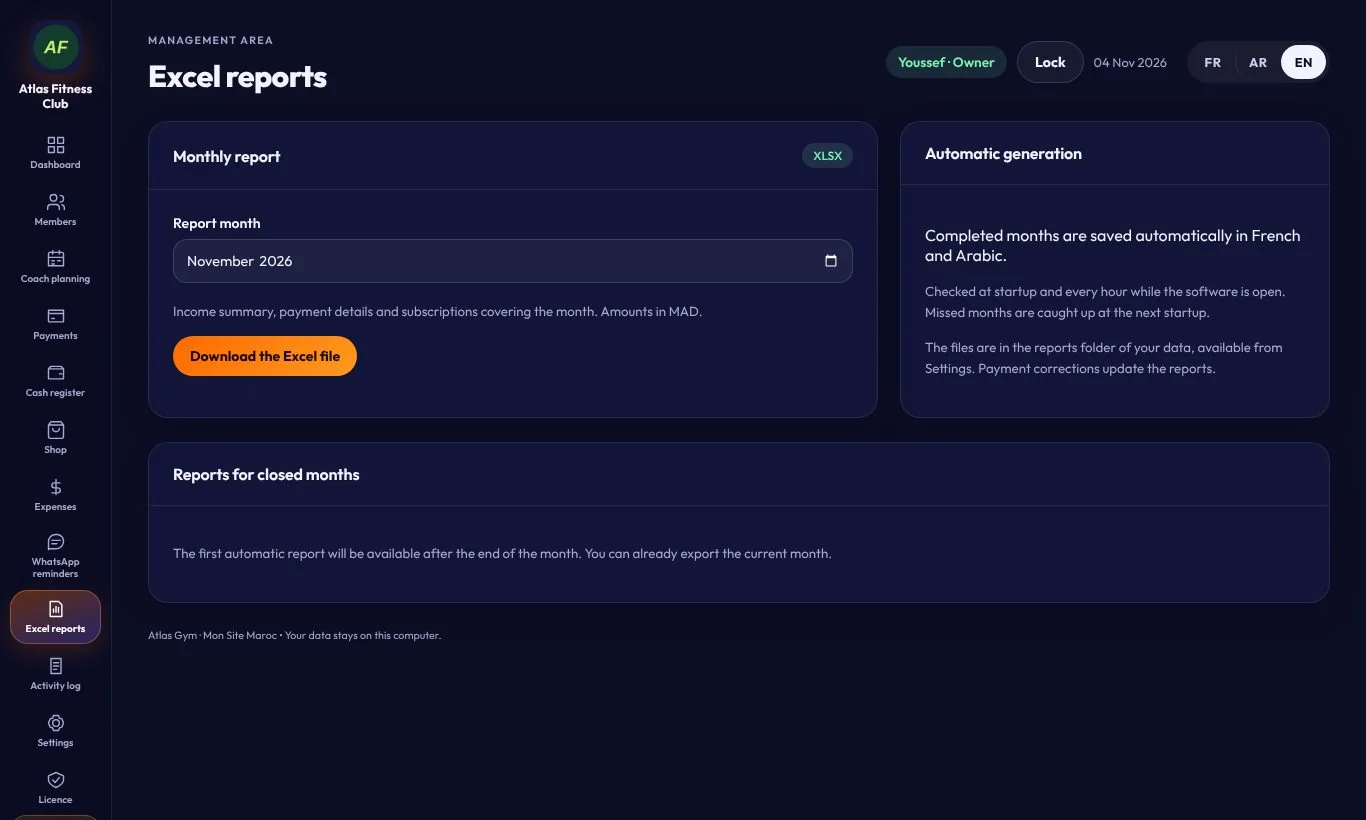
Download any month’s report: revenue, payments and memberships. Reports for finished months are saved automatically in French and Arabic.

Excel reports
21

Activity log

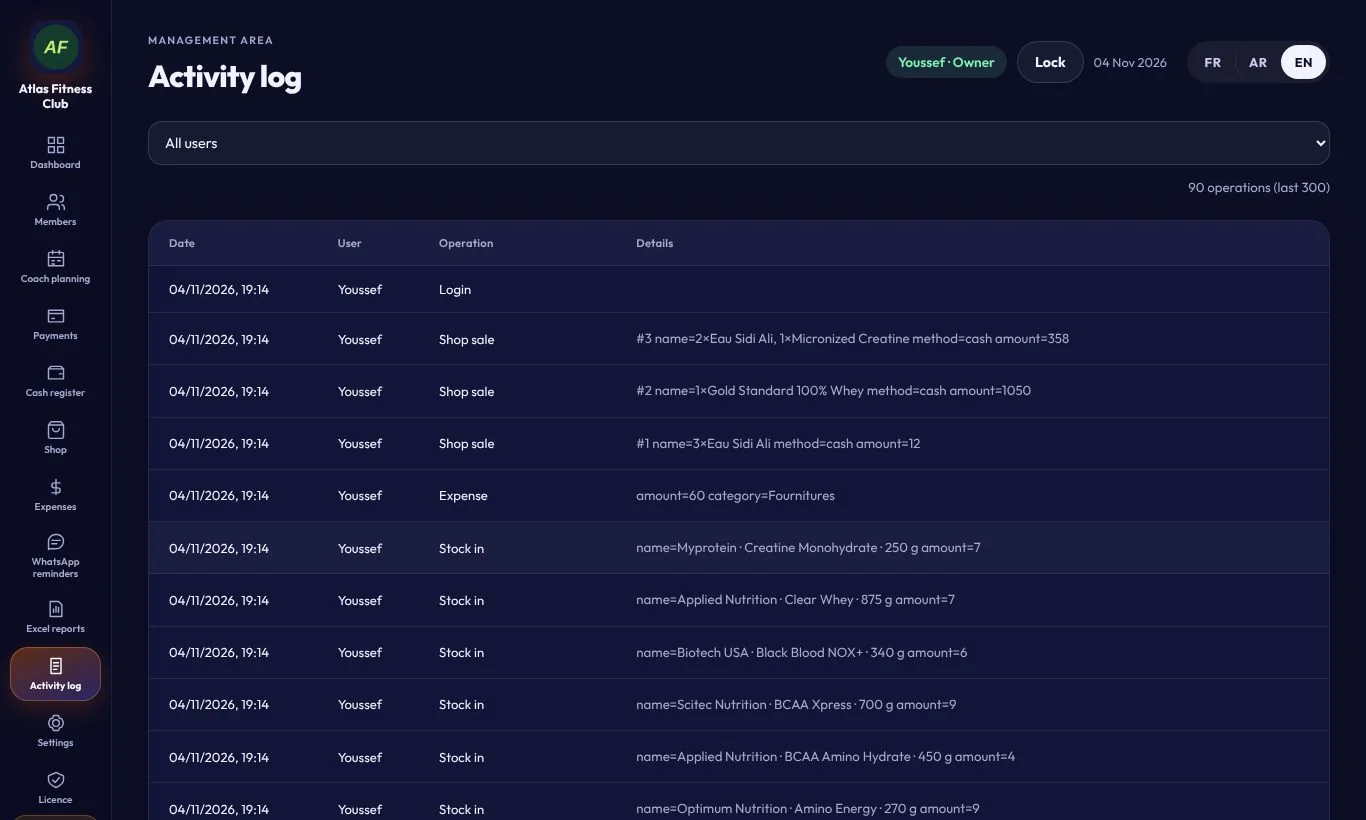
Every action is logged with the date, user and details: logins, sales, expenses, restocks… Filter by user.

Activity log

07Settings & team

22

Settings & backup

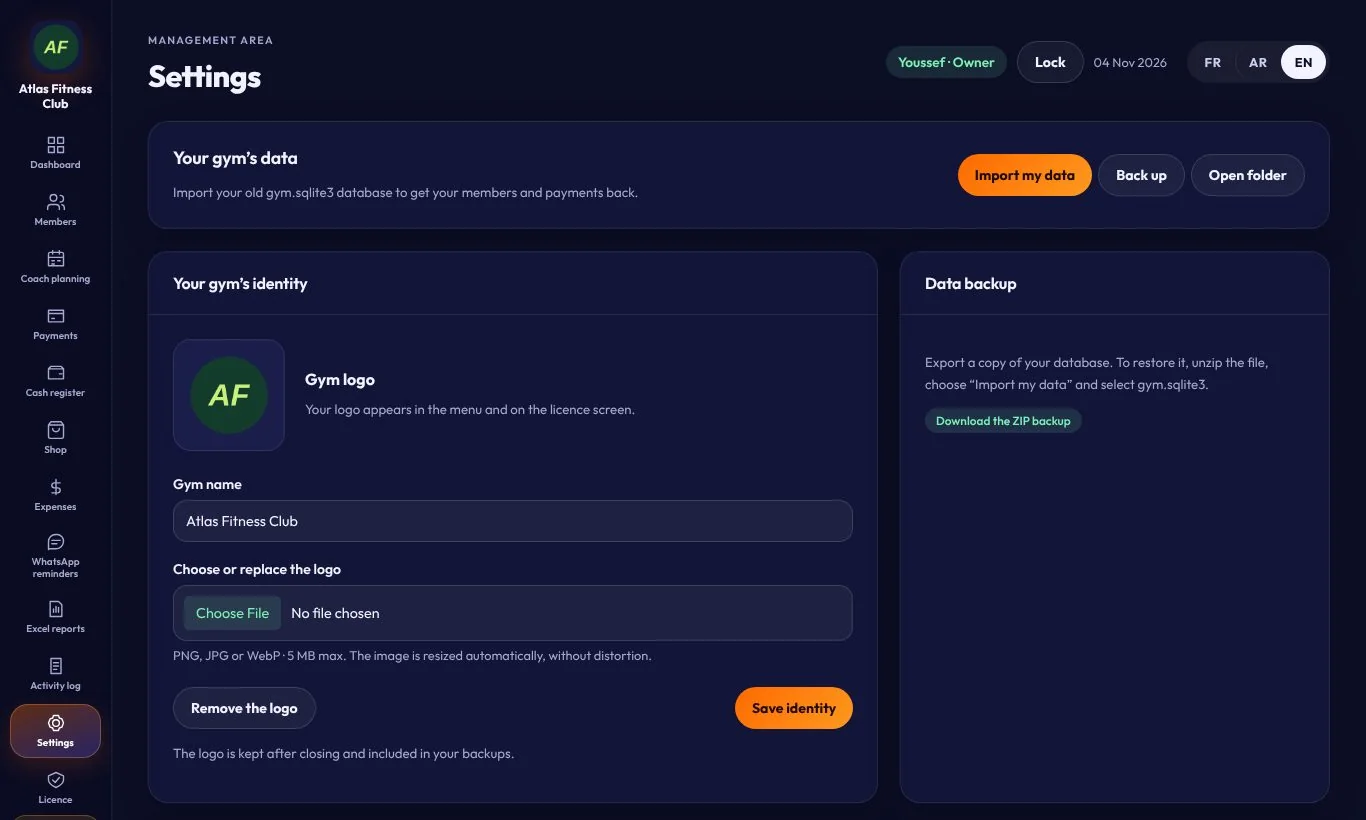
Import an old database, make a backup or open your data folder. Download the ZIP backup and keep a copy on a USB stick.

Settings & backup
23

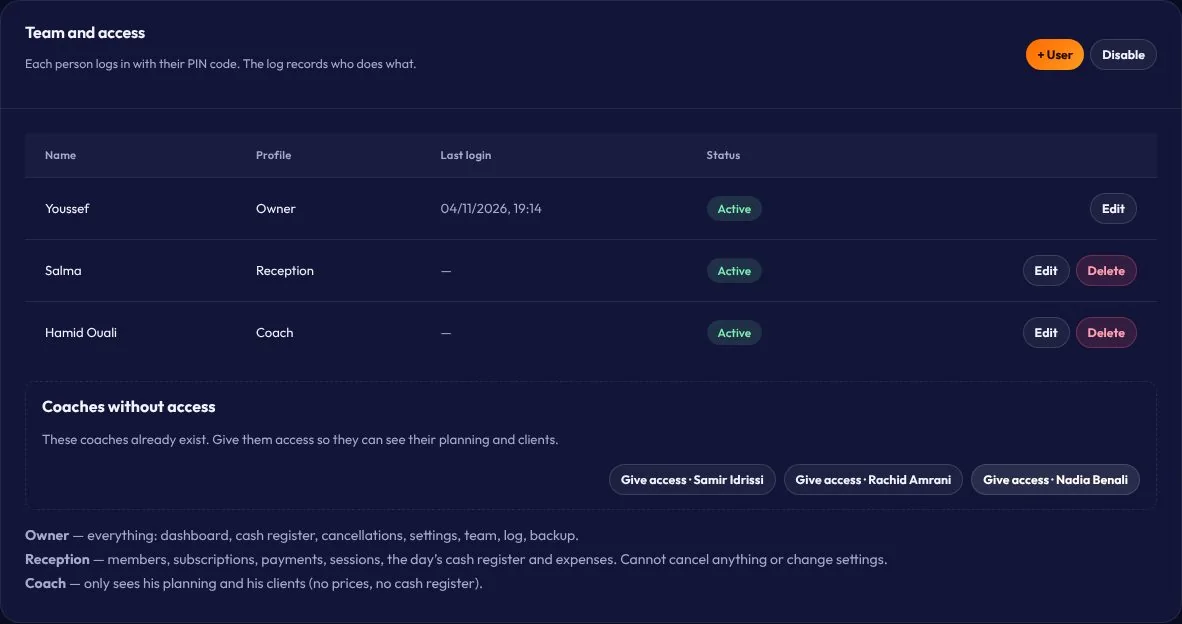
Team & access

Add users with a PIN code and a role: Owner (full access), Reception (members, payments, sessions, daily cash register and expenses) or Coach (their own schedule and clients only).

Team & access
24

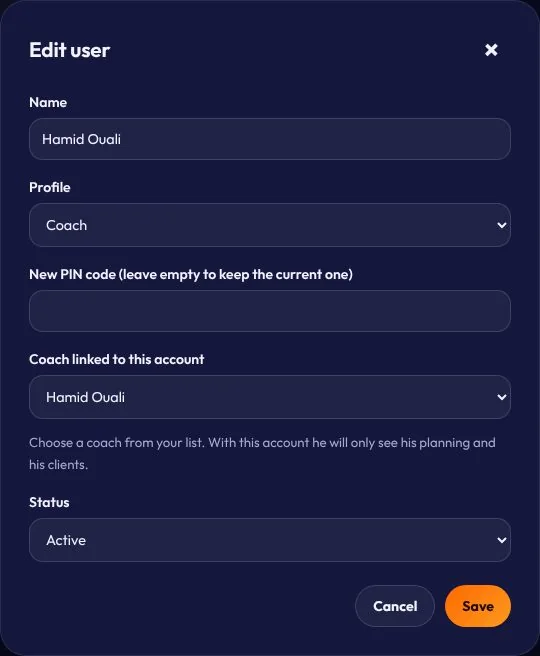
Coach account

Link the account to a coach from your list: they’ll only see their schedule and clients, with no prices or cash register. You can change their PIN or deactivate the account at any time.

Coach account
25

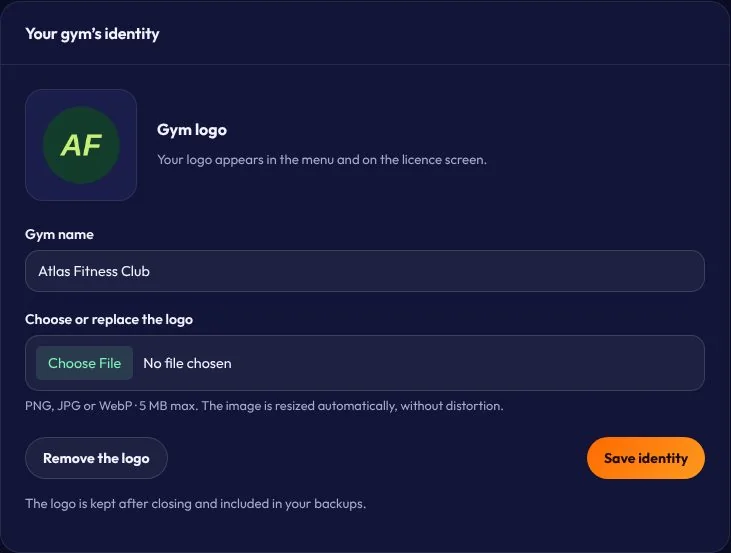
Your gym’s identity

Enter your gym’s name and logo: they appear in the menu, on the licence screen and on receipts. The logo is included in your backups.

Your gym’s identity
26

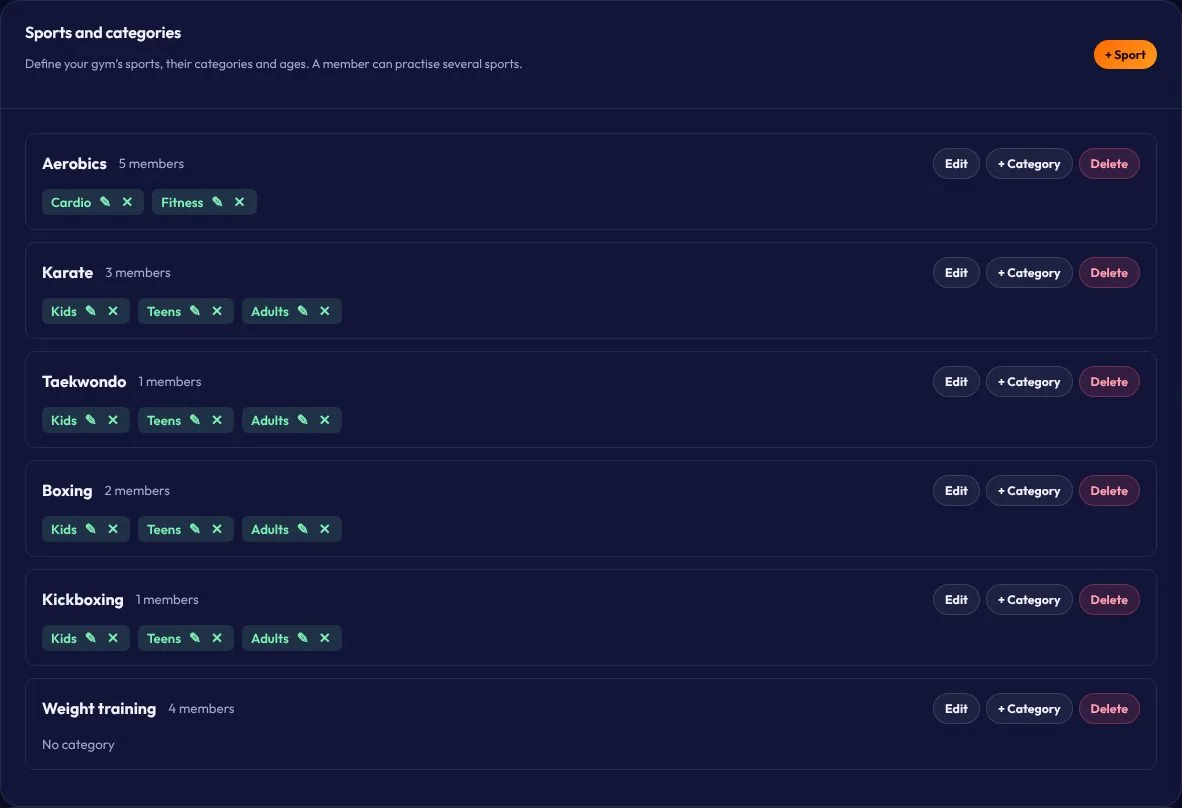
Sports & categories

Create your gym’s sports and their age categories (Kids, Youth, Adults…). A member can do several sports.

Sports & categories

08By role

27

Reception view

Reception sees members, the schedule, payments, the cash register, the shop and WhatsApp reminders, with no access to settings or reports.

Reception view
28

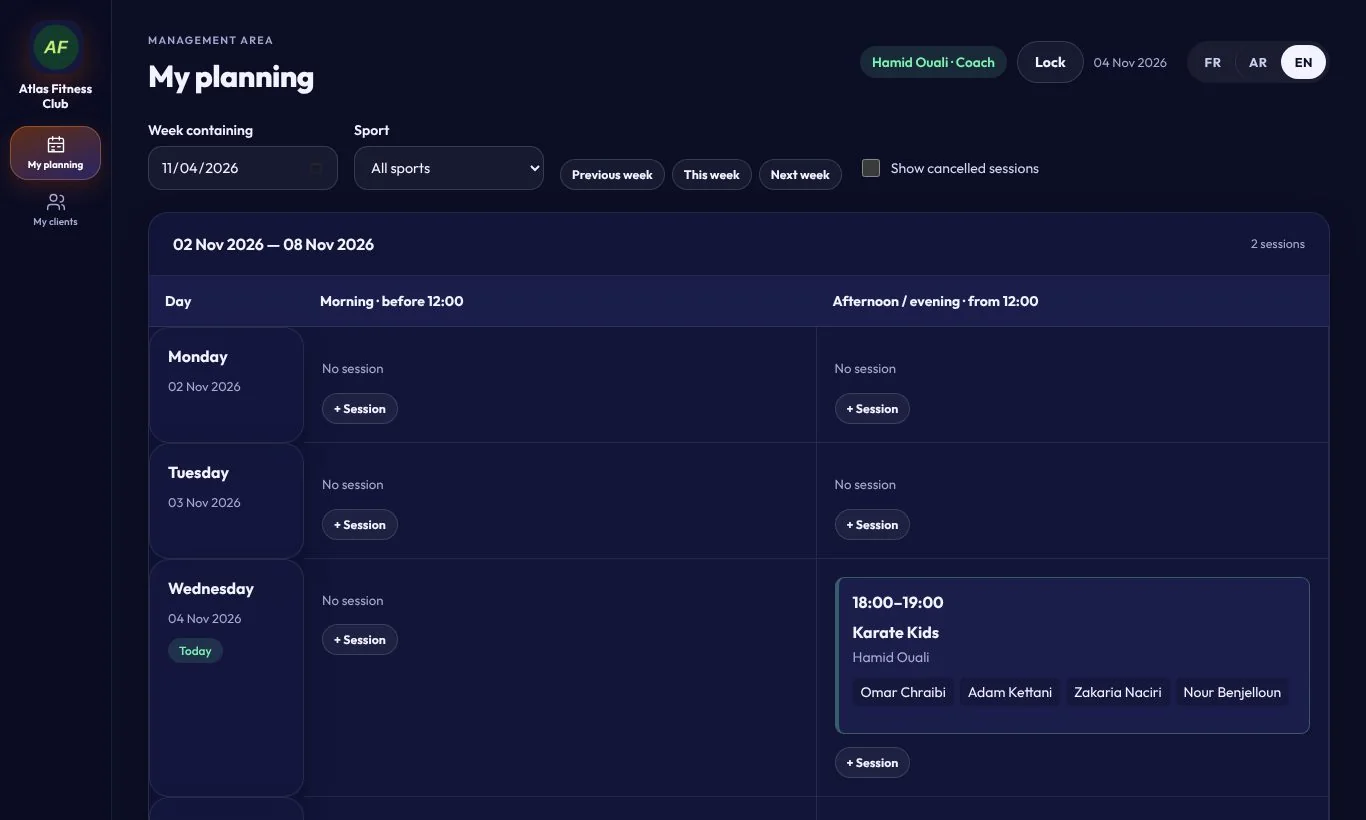
Coach view: their schedule

The coach logs in with their PIN and only sees their own sessions for the week.

Coach view: their schedule
29

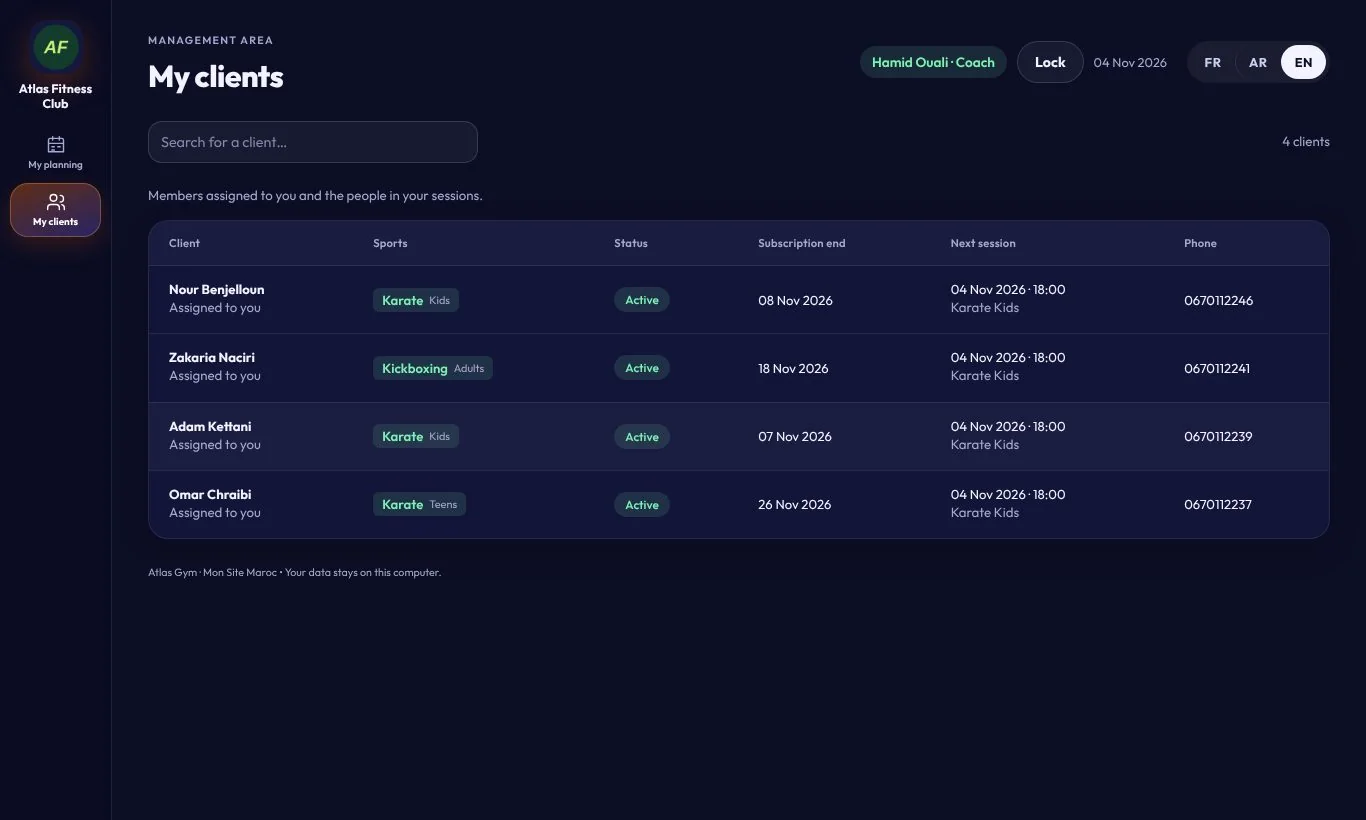
Coach view: their clients

Their members with sports, subscription end date, next session and phone number.

Coach view: their clients

Need help?

Message us on WhatsApp and we’ll walk you through it step by step.

Talk on WhatsApp ↗