← Back to Atlas Rental Car USER GUIDE

Atlas Rental Car user guide

A step-by-step guide to using Atlas Car Rental: from installation and licensing to managing your fleet, customers, bookings, contracts and finances.

5 chapters 12 steps Need help? WhatsApp us
▶VIDEO

Watch Atlas Rental Car in action

A quick video tour before you start, then follow the steps below.

01Getting started

01

Installation

Windows — Microsoft Store (recommended)

  1. Open the Microsoft Store and search for Atlas Car Rental.
  2. Click Get, then Open.

With the Store version, your data is saved in Documents\Atlas Rent, so it stays on the computer even if you uninstall the app.

Windows — installer (.exe)

  1. Double-click Atlas-Rent-Setup-1.5.0-Windows-x64.exe.
  2. If Windows shows “Windows protected your PC”, click More info, then Run anyway.
  3. Choose the language, keep the suggested folder and click Install. A shortcut is added to the Desktop.

Mac

  1. Check your Mac: Apple menu → About This Mac. “Chip Apple M1, M2, M3…” = Apple Silicon; “Processor Intel” = Intel.
  2. Double-click the matching file, Atlas-Rent-Setup-1.5.0-Mac-Apple-Silicon.pkg or Atlas-Rent-Setup-1.5.0-Mac-Intel.pkg, then follow Continue → Install.
  3. If macOS blocks the app: System Settings → Privacy & Security → Open Anyway.
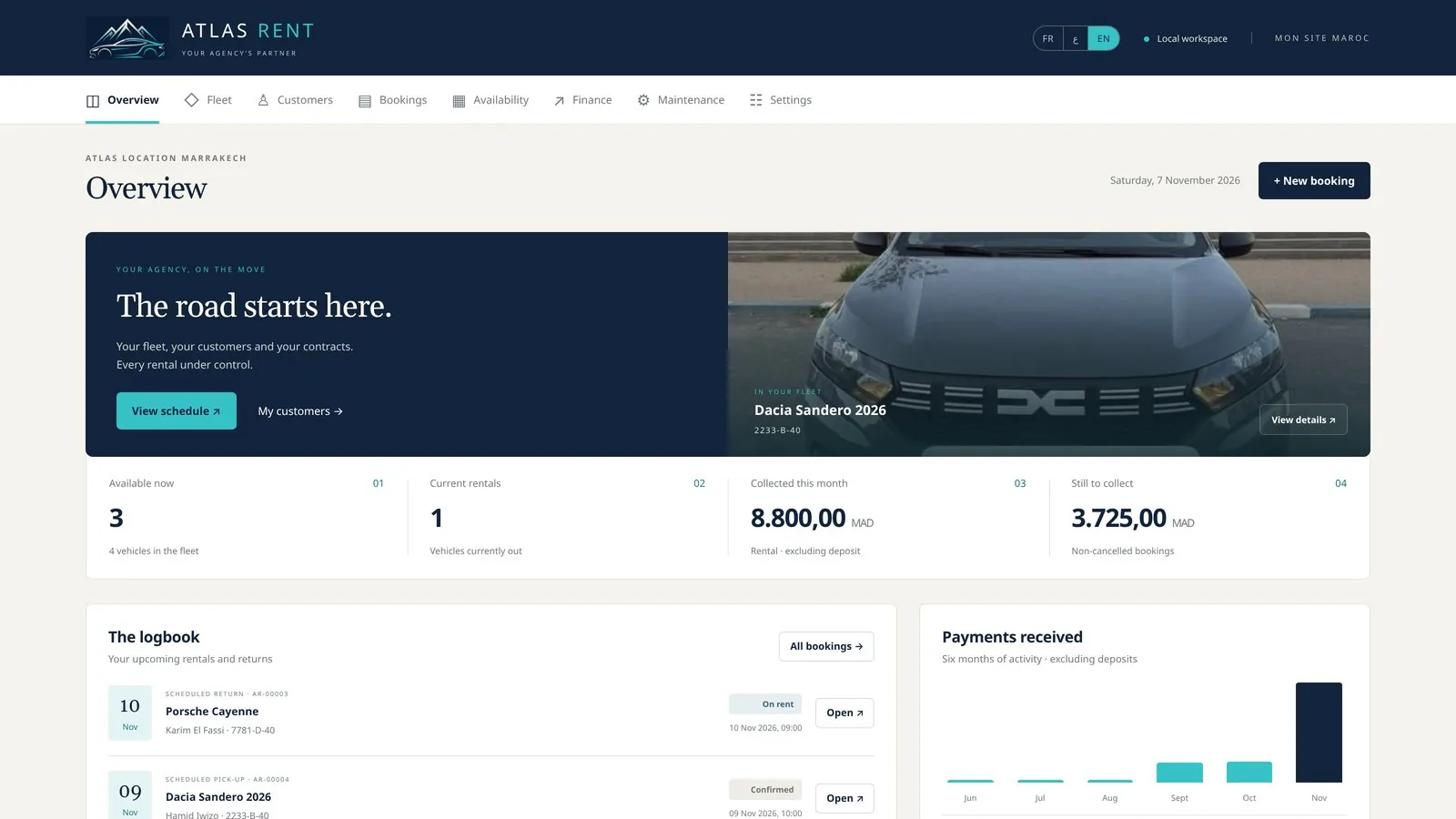
02

First launch and 3-day trial

  • On first launch, a full 3-day trial starts, with every feature available.
  • Change the interface language with the FR · ع · EN buttons at the top, or in Settings → Interface language. The change is instant.
  • To explore with sample data, click Load the demo on the Overview. Before starting your real work, go to Settings and click Create an empty database.
When the trial ends, your vehicles, customers and contracts are kept. The app becomes read-only until you activate your licence.
First launch and 3-day trial
03

Agency settings

Open Settings and fill in:

  • Your agency details: name, address, city, phone, email, ICE, IF, RC, Patente.
  • Your agency logo: Add / change logo. It appears on contracts, receipts and invoices.
  • Rental terms: your terms, printed on every contract (plus an Arabic version for a bilingual contract).
  • Contract language: French, French + Arabic, English, or English + Arabic.
  • Invoice VAT rate: 20% by default, 0 if VAT does not apply.
  • Seasonal rates & discounts: up to 4 seasons (e.g. summer +30%) and a discount from 7 days and from 30 days.

Click Save settings. Changes apply to new bookings; existing contracts keep their original details.

02Fleet & customers

04

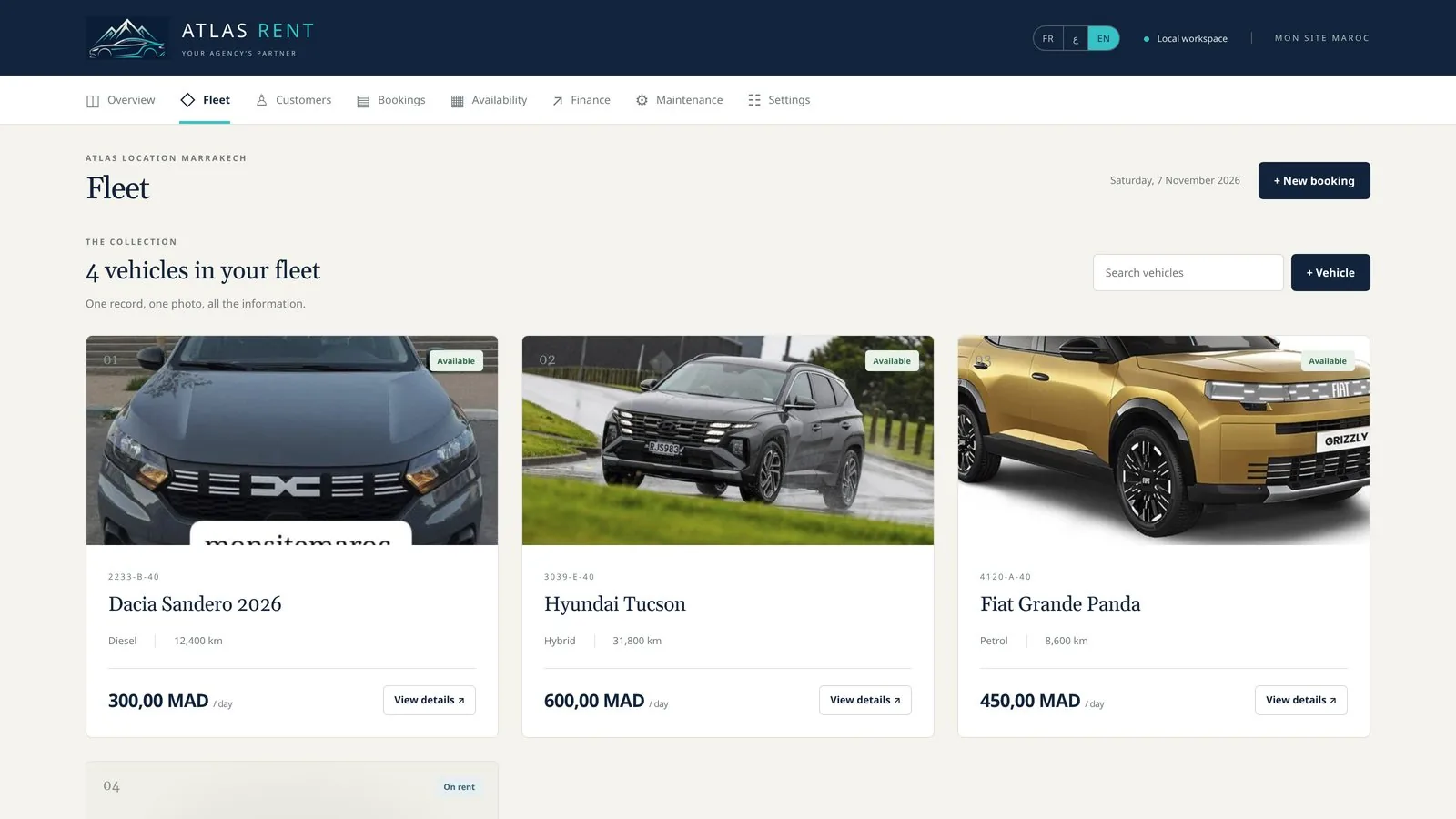
Add your vehicles

  1. Go to Fleet and click + Vehicle.
  2. Add the photo (JPEG, PNG or WebP, 12 MB maximum).
  3. Enter the make and model, licence plate, daily rate (MAD), fuel and mileage.
  4. To get reminders, enter the next oil change (km), the insurance due date and the technical inspection due date.
  5. Click Save.

The Vehicle status (Available, In maintenance, Out of service) blocks bookings when the car is not available.

Add your vehicles
05

Customers and blacklist

  1. Go to Customers and click + Customer.
  2. Enter the full name, phone, ID card or passport, driving licence number and address. For a company, add its ICE (used on the invoice).
  3. Click Save, or Save & create contract to go straight to the booking.

Blacklist

In the customer record, tick Blacklisted customer and enter the reason. Atlas Car Rental warns you on every new booking for this customer, and when a new record uses the same ID card, licence or phone number. The blacklist never appears on the contract.

03Bookings & contracts

06

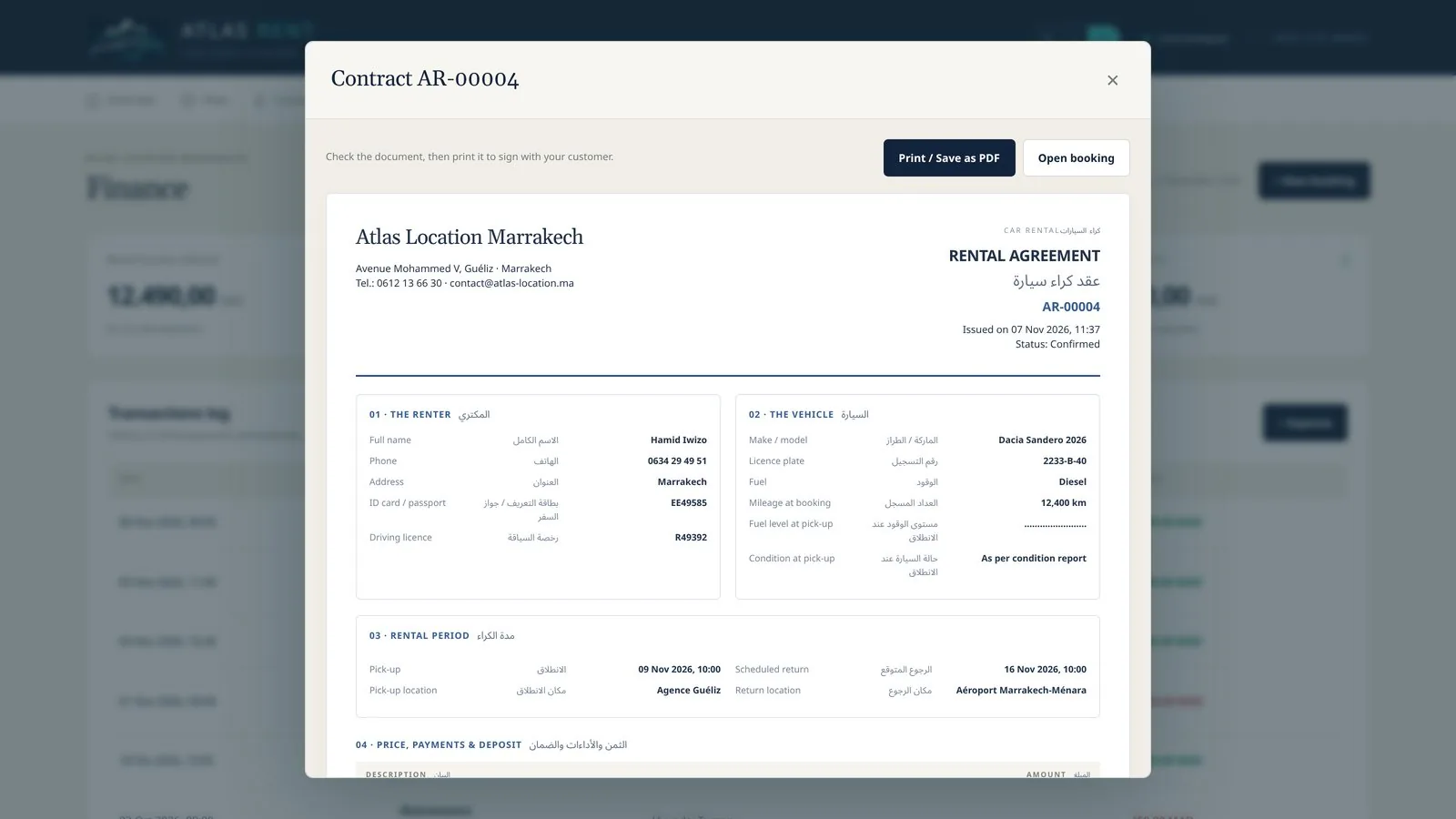
Create a booking and the contract

  1. Click + New booking (at the top), or Create a contract next to a customer.
  2. Choose the customer and the vehicle, then the date and time of pick-up and scheduled return.
  3. Enter the planned deposit, the pick-up and return locations and, if needed, an additional driver (name, ID, licence, phone).
  4. The software shows whether the vehicle is available and calculates the price (per 24-hour period, with seasons and discounts).
  5. Click Save & show contract, then Print / Save as PDF.
The contract uses your logo, details and terms, in the language chosen in Settings. Print it and have the customer sign it.
Create a booking and the contract
07

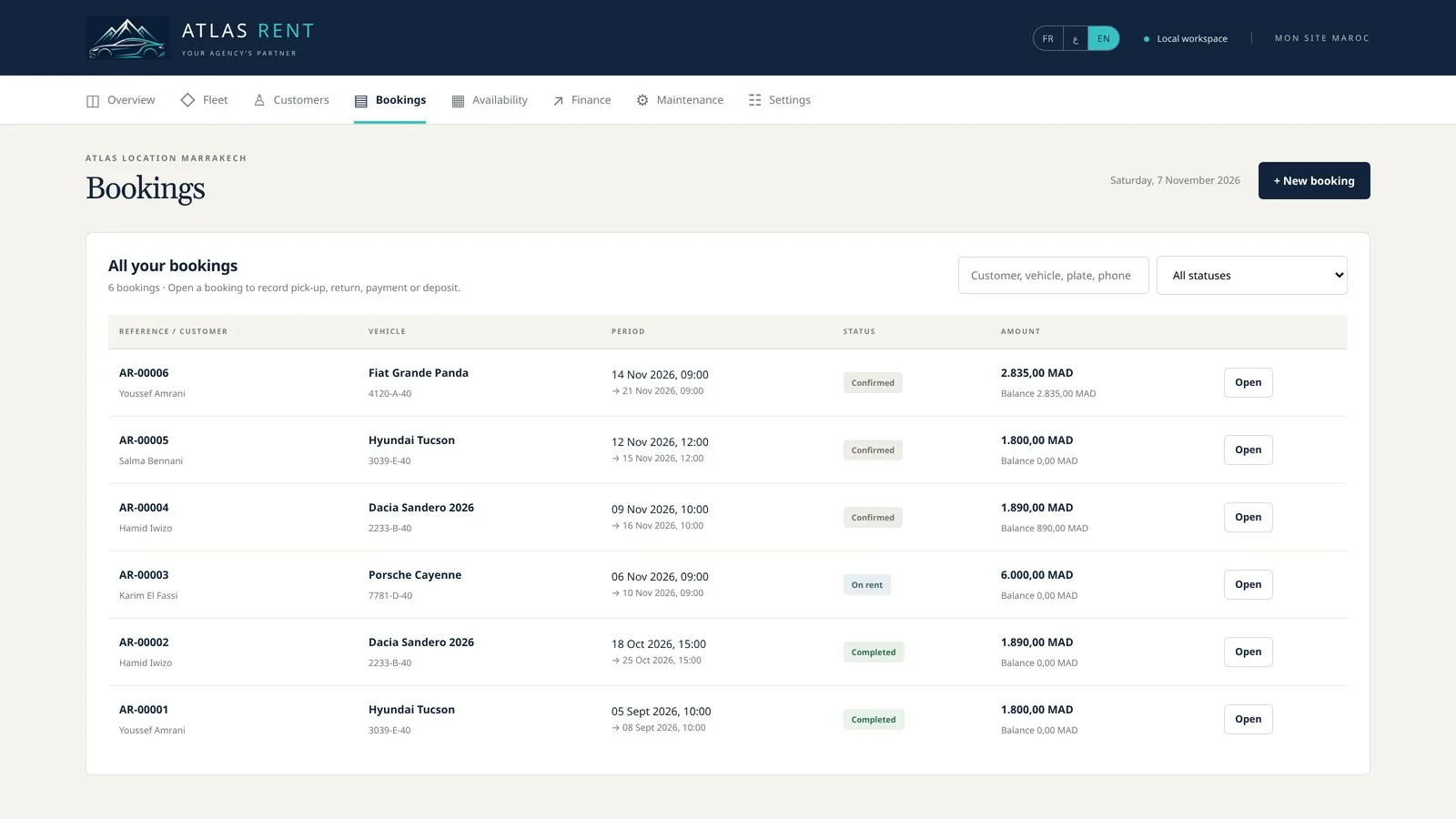
The booking: pick-up, payments, deposit, return

In Bookings, click Open to see the booking. It contains:

ButtonUse
Record pick-upCondition report at pick-up: mileage, fuel, damage and up to 4 photos. The rental becomes “On rent”.
Collect / RefundRecords a payment (cash, transfer, card, cheque) or a refund. Each line has a printable Receipt.
DepositReceive, return or withhold an amount. The deposit is tracked separately and is not counted as income.
ExtendNew return date. The price is recalculated and the balance due increases.
ChargesLate return, extra kilometres, missing fuel, damage or another charge, added to the balance due.
Record returnCondition report at return. The rental becomes “Completed” and the car is available again.
WhatsAppReady-to-send message: confirmation, return reminder or balance due. You check it in WhatsApp before sending.
Create invoiceOne invoice per booking, numbered FAC-YYYY-0001, with amounts excl. VAT, VAT and incl. VAT. An issued invoice cannot be changed.
The booking: pick-up, payments, deposit, return
08

Availability

The Availability page shows each car’s schedule: blue = booking, green = rental in progress, orange = maintenance or out of service. The software automatically refuses two overlapping bookings for the same car.

04Finance & upkeep

09

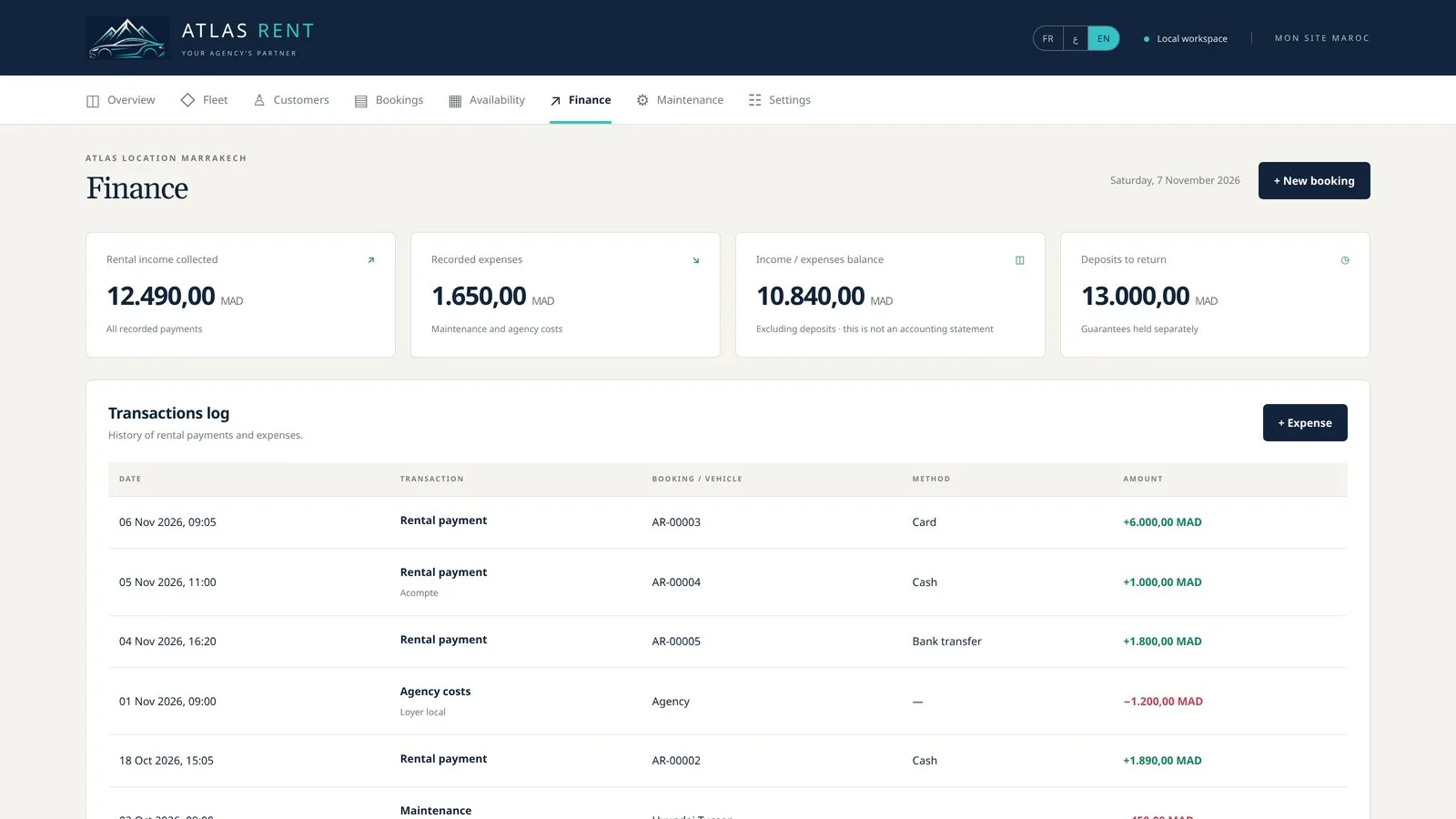
Finance and invoices

  • Rental income collected, expenses, income / expenses balance and deposits to return.
  • + Expense: fuel, repair, insurance, agency costs…
  • Results by vehicle: income, expenses and difference.
  • List of invoices, to review and print again.
  • Excel exports (CSV): bookings, financial log and customers.
Finance and invoices
10

Maintenance and fines

  • Deadlines & alerts: insurance, technical inspection, oil change and late returns. Alerts also show on the Overview.
  • + Maintenance cost: record the cost of a repair or an oil change.
  • Fines & tickets: click + Fine, choose the vehicle and the date and time of the offence. Atlas Car Rental finds the rental and the driver. You can add the amount to the customer’s booking.

05Backups & licence

11

Backups

  • Atlas Car Rental copies your database automatically about every 6 hours (if it changed) and when closing. The last 30 copies are kept.
  • In Settings → Automatic backups, click Choose an external folder (USB key, Google Drive, Dropbox…) to keep a copy outside the computer.
  • Export JSON backup: do this before changing computers.
  • Restore replaces the current data. A “Before restore” copy is created first.
If the computer breaks down, copies kept on that computer are lost with it. Choose an external folder.
12

Activate your licence

  1. Click Licence (or Manage licence).
  2. Click Copy device code and send this code to Mon Site Maroc on WhatsApp.
  3. You receive your serial number. Paste it into the Serial number field and click Activate my licence.

Available licences: 1 month, 3 months, 1 year or lifetime. A licence is linked to one computer. To renew, simply activate the new serial number: your data stays intact.

Need help?

Message us on WhatsApp and we’ll walk you through it step by step.

Talk on WhatsApp ↗